A QuickBooks Desktop-to-Online migration can be straightforward if you plan it properly. That usually means reviewing your data, creating a backup, choosing the right subscription, completing the conversion, and validating your results. Intuit regularly updates its guidance on migrating from QuickBooks Desktop to QuickBooks Online and today we’ll provide the latest information as of September 2026.
This guide covers how the migration works, what information moves over, and where businesses commonly run into issues with payroll, inventory, reporting, and integrated workflows.
TL;DR
- Back up your QuickBooks Desktop company file and clean up duplicates, open invoices, and unreconciled accounts before you migrate.
- The migration tool is built into QuickBooks Desktop Pro and Premier (Company menu) and uses a different keyboard shortcut path in Enterprise.
- What will transfer: customers, vendors, invoices, and chart of accounts generally move, but custom reports, templates, price levels, and some payroll details do not.
- Compare reports before and after migration: run Balance Sheet, Profit and Loss, and A/R and A/P Aging in both systems to verify accuracy.
- Reconnect apps and workflows after migration: moving accounting data to QuickBooks Online doesn’t automatically fix your customer, quote, order, and payment workflows.
Can you migrate from QuickBooks Desktop to QuickBooks Online?
Yes, you can technically migrate from QuickBooks Desktop to QuickBooks Online using Intuit’s migration tools. However, the process varies by Desktop version and file size.
If you’re a QuickBooks Desktop Pro and Premier user (version 2022 or newer), you can access the export option under the Company menu: select “Migrate this company file to QuickBooks Online,” then “Export Your Company File to QuickBooks Online.”
QuickBooks Desktop Enterprise migration requires a different path.
Press Ctrl+1 to open the Product Information window, then press Ctrl+B+Q and select OK. This path is documented in Intuit’s Desktop company file migration instructions and differs enough from Pro and Premier that Enterprise users should review it before starting.
Using QuickBooks in Canada? Check Intuit Canada’s migration walkthrough, which was updated recently and covers region-specific steps. QuickBooks Desktop availability and migration guidance vary by region.
One important constraint: Intuit has different requirements for how quickly you need to move your data from QuickBooks Desktop. If you signed up for yourself, you have 90 calendar days. If your accountant signed you up, you have 180 calendar days. If you need more time to prepare, create your QuickBooks Online account only when you are ready to migrate.
Should you migrate from QuickBooks Desktop to QuickBooks Online?
Below, we’ve provided you with a table to help you make the right decision before you invest time and energy in migration.
| Situation | Migration recommendation | Why |
|---|---|---|
| You need remote access, cloud access, and automatic updates | QuickBooks Online is likely a strong fit | QuickBooks Online is built for browser-based access and cloud-based workflows. |
| You rely heavily on advanced Desktop inventory | Review carefully before migrating | Some inventory workflows may not transfer cleanly or may require QuickBooks Online Plus, Advanced, or a connected app. |
| You use Desktop payroll, job costing, or custom reporting | Test before fully switching | These areas often need extra validation after migration. |
| You run QuickBooks with spreadsheets and disconnected sales tools | Migrate with a workflow plan | Moving accounting online will not automatically fix customer, quote, or order workflows. |
| You need deep ERP functionality | QuickBooks Online alone might not be enough | You may need QuickBooks Enterprise, third-party apps, or a connected workflow system. |
So, while the question might seem as simple as “Should we move to QuickBooks Online?”, what you really need to know is: “What happens to the customer, sales, quote, order, and payment workflows around QuickBooks if we make the switch?”
Many businesses have workflows that exist in spreadsheets, inboxes, or disconnected tools. Migration actually presents you with a great opportunity to decide what should stay in accounting software and what should move into a connected CRM or workflow system.
The QuickBooks Desktop discontinued article covers what changed when Intuit stopped selling new Desktop subscriptions in September 2024, and why many businesses are evaluating migration now.
What should you do before migrating from QuickBooks Desktop to QuickBooks Online?
1. Back up your QuickBooks Desktop company file before migration
Make a full local backup and save a copy of it outside of your main working folder.
2. Back up your QuickBooks Desktop company file before migration
Before you migrate, merge duplicate customers and vendors, inactivate unused list items, and review open invoices, unpaid bills, and unapplied payments. Reconcile bank and credit card accounts, and close or review old periods.
3. Confirm your QuickBooks Online plan supports the features you need
Inventory tracking requires QuickBooks Online Plus or Advanced; it isn’t included in Simple Start or Essentials. Advanced reporting and batch transactions require QuickBooks Online Advanced. Payroll, payment processing, and time tracking may each need separate setup, even if you used these features in Desktop.
Multi-user access and permission structures also differ enormously from those on Desktop.
According to Intuit, existing Desktop users don’t automatically have access to QuickBooks Online; they must be invited through the QuickBooks Online admin panel. Confirm which plan supports the features you require before committing to a subscription.
4. Make a list of connected apps and workflows before migration
Your accounting data transfers during migration, but your third-party apps aren’t automatically reconnected.
So, document every system connected to QuickBooks Desktop before you migrate:
- CRM
- Spreadsheets
- Estimate templates
- Customer portals
- Payment tools
- Time tracking
- Inventory systems
- Reporting dashboards
- Email templates
- Custom forms
How do you migrate QuickBooks Desktop to QuickBooks Online?
Let’s go through it step-by-step.
Step 1: Sign in to QuickBooks Desktop as the admin user
Admin access is required to initiate data migration. Make sure you’re working in the correct company file and that QuickBooks Desktop is updated to the latest version.
Intuit also requires your company file to have fewer than 4,000,000 targets. Check this by pressing F2 or Ctrl+1 in Desktop. It’s also helpful to note that if you have more than 750,000 targets, Intuit says it can take longer to process, and this can cause data discrepancies. Exercise additional caution if you’re dealing with inventory.
Does your file exceed this limit? Then you’ll need to condense your data first.
Step 2: Open the migration or export option in QuickBooks Desktop
For QuickBooks Desktop Pro and Premier (2022 or newer), go to Company, select “Migrate this company file to QuickBooks Online,” then select “Export Your Company File to QuickBooks Online.”
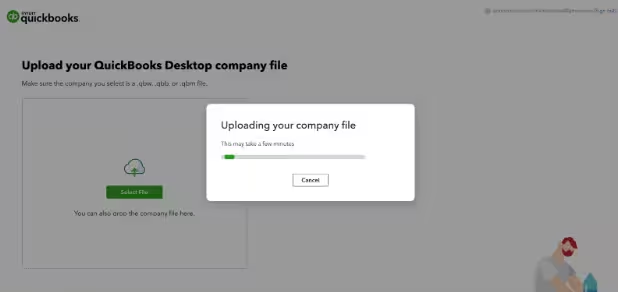
For QuickBooks Desktop Enterprise, press Ctrl+1 to open the Product Information window, then press Ctrl+B+Q and select OK.
If you don’t have QuickBooks Desktop installed (for example, if an accountant is helping remotely), Intuit’s online migration tool accepts QuickBooks company files (.QBW), portable files (.QBM), and backup files (.QBB) that you upload directly from your computer.
Step 3: Sign in to the target QuickBooks Online company
Confirm you’re sending data to the correct QuickBooks Online account. If you already have data in that QuickBooks Online company, QuickBooks will ask if you want to replace it. This action can’t be undone.
Step 4: Decide how to handle inventory during migration
Your QuickBooks Online inventory won’t necessarily act the same way it does in Desktop. For example, QuickBooks Online Plus and Advanced support inventory tracking, but some Desktop-specific inventory workflows don’t transfer perfectly.
This includes:
- Units of measure
- Manufacturer’s Part Numbers
- Assembly details
Learn how to track inventory in QuickBooks Online to understand what QuickBooks Online supports natively before you migrate.
Does your business have warehouse, bin, assembly, or job-specific inventory needs? If yes, then test your inventory data carefully after migration before fully switching.
Step 5: Run the migration and wait for confirmation
Don’t use the file while migration is running. Avoid running payroll, reconciling accounts, or entering major transactions until you get confirmation that migration has completed. Document the date and time you initiated migration—this will be your reference point when comparing reports.
Step 6: Compare reports in QuickBooks Desktop and QuickBooks Online
Intuit specifically recommends running a Profit and Loss report or Balance Sheet in both QuickBooks Online and QuickBooks Desktop to verify that data imported correctly.
Additional reports to compare include:
- Trial Balance
- Accounts Receivable Aging
- Accounts Payable Aging
- Open Invoices
- Unpaid Bills
- Sales by Customer
- Inventory Valuation (if applicable)
Don’t accept migrated data as accurate until your key reports match. Differences between Desktop and QuickBooks Online reports are the first signal of a migration issue.
Pro Tip: Save PDF copies of your final Desktop Balance Sheet, Profit and Loss, Trial Balance, and A/R and A/P Aging reports before migration. Having a permanent snapshot makes post-migration validation significantly easier and provides supporting documentation for auditors, lenders, and tax advisors.
What data transfers from QuickBooks Desktop to QuickBooks Online?
In the table below, we cover the most common data types and what to verify after migration.
| Data type | Usually transfers? | What to check after migration |
|---|---|---|
| Customers | Yes | Check duplicate names, inactive customers, and customer balances. |
| Vendors | Yes | Review unpaid bills and vendor balances. |
| Chart of accounts | Yes | Confirm account types and opening balances. |
| Products and services | Yes | Review item names, rates, inventory settings, and inactive items. |
| Invoices | Yes | Check open invoices, paid status, and customer balances. |
| Bills | Yes | Compare unpaid bills and vendor aging reports. |
| Estimates | Often | Review formatting, status, and converted transactions. |
| Payroll data | Limited / varies | Confirm employee, tax, and payroll history requirements. |
| Inventory | Varies | Confirm quantities, valuation, and costing differences. |
| Custom reports | Often no | Rebuild reports in QuickBooks Online or connected reporting tools. |
| Templates | Limited / varies | Recreate invoice, estimate, and email templates. |
| Audit trail/history | Limited / varies | Confirm what history is available after migration. |
What does not convert cleanly from QuickBooks Desktop to QuickBooks Online?
Moving from Intuit QuickBooks Desktop to QuickBooks Online involves more than changing where your financial data is stored. Although the migration process transfers a substantial amount of accounting information, some Desktop-specific functionality, customizations, and workflows may not transfer in the same way.
Intuit’s migration documentation provides the most accurate picture of what will and won’t move.
Some of the items that often require manual reconstruction after migration include:
- Custom report formats
- Payroll details
- Inventory workflows
- Sales tax settings
- Desktop-specific fields
- Templates
- Memorized transactions
- Price levels
- Job costing details
- Permissions and user roles
- Third-party app connections
What are the most common QuickBooks Desktop to Online migration mistakes?
Mistake 1: Migrating before cleaning up the Desktop file
Every duplicate customer, unapplied payment, and unreconciled account in your Desktop file follows you into QuickBooks Online. Teams that skip cleanup before migration spend weeks correcting data in their new system instead of using it.
Mistake 2: Choosing a QuickBooks Online plan before mapping required features
Some businesses choose a QuickBooks Online plan based on price and later realize the plan doesn’t include inventory tracking, advanced reporting, or batch transactions. Map your required features to available QuickBooks Online plans before you subscribe, including any new features that might be beneficial.
Mistake 3: Assuming Desktop reports will look identical in Online
QuickBooks Online reports may need to be rebuilt or customized after migration. Cash-basis reports in QuickBooks Online won’t always exactly match their QB Desktop equivalents, and budget reports won’t always recreate correctly due to mapping differences. Plan to rebuild your core reports in QuickBooks Online rather than expecting them to carry over across your Intuit account.
Mistake 4: Not comparing financial reports after migration
You need to run a Balance Sheet and a Profit and Loss Comparison after the migration to confirm it worked.
Mistake 5: Forgetting about connected sales and customer workflows
Just because your accounting data now appears in QuickBooks Online, it doesn’t mean the migration is done. Next, you’ll need to reconnect the workflows that depend on that data.
This includes:
- Lead management
- Estimates
- Approvals
- Order tracking
- Invoicing
- Payment collection
- Customer communication
Dan DeLong, specialized technology advisor (Founder of Danwidth, LLC, Chief Empowerment Officer @ School of Bookkeeping, Host of QuickBooks Power Hour), says the biggest reason clients hesitate to move from QuickBooks Desktop is the learning curve.
“They’re comfortable with the Desktop environment, and when software they already rely on suddenly becomes more expensive, there’s naturally some resistance around that,” he added. “On top of the pricing pressure, QuickBooks Online looks completely different, which can feel overwhelming for long-time users.”
DeLong, who helps clients migrate from QuickBooks Desktop to QuickBooks Online, says he tries to bridge that gap by giving clients time to test the platform and using tools like the Desktop app view to make the transition feel more familiar.
How long does QuickBooks Desktop to Online migration take?
Migration time depends on file size, complexity, and the thoroughness of your validation needs. Don’t set a hard go-live date until validation is complete.
Here are some general guidelines of what to expect:
- Small, clean file: Migration can complete the same day, with a few hours of validation.
- Larger file with years of history: Expect a longer validation period after migration completes.
- Complex inventory, payroll, or job costing: Plan for testing and cleanup that may extend several days.
- Multi-user team with connected workflows: Plan a phased rollout, running both systems in parallel for a period before fully switching.
What should you do after migrating to QuickBooks Online?
Your original Desktop file isn’t deleted when you migrate. Intuit recently explained that the migration tool copies your data to QuickBooks Online, leaving the Desktop file intact. For QuickBooks Desktop 2023 R3 and newer, Intuit also provides view-only access to historical Desktop data for one year after migration.
Compare your financial reports before using QuickBooks Online as your source of truth
Run and compare Balance Sheet, Profit and Loss, Trial Balance, A/R Aging, and A/P Aging reports in both systems. Don’t start new transactions or give team members access to QuickBooks Online until your key reports match.
Recreate templates, reports, and user permissions
Some templates, reports, recurring transactions, user permissions, and sales tax settings may need to be reviewed or rebuilt after migration. Sales tax is especially important to validate because not every sales tax transaction transfers cleanly.
You can customize invoices in QuickBooks Online and add an e-signature to QuickBooks estimates using QuickBooks Online’s built-in tools, though both have limitations. Connected tools like Method CRM provide more flexibility for custom templates and approval workflows.
Reconnect your CRM, payment, inventory, and reporting tools
If QuickBooks is your financial system of record, your connected tools need to respect that structure after migration. For teams using Method CRM, this is the point to validate customer records, estimate workflows, sync invoices, manage payment workflows, and any custom processes that depend on QuickBooks data.
Method’s two-way sync with QuickBooks Online ensures customer records, transactions, and workflows stay aligned across both systems.
“From an efficiency standpoint across all of our departments, it has saved us a tremendous amount of money. There’s a lot of manual tasks that we’ve been able to automate that have saved a complete position that we would have had to hire for.”
— Go Powertrain, Method CRM customer
Read Go Powertrain’s story to see how connecting customer and operational workflows to QuickBooks eliminated manual tasks at scale.
Train your team on what changed between Desktop and Online
Cover navigation differences, approval workflows, reporting differences, user permissions, new data-entry rules, and where customer and transaction data now lives. QuickBooks Online has its own keyboard shortcuts (press Ctrl+Alt+? to see them), and the interface is different enough from Desktop that even experienced bookkeepers need time to adjust.
What happens to your sales and customer workflows after migrating to QuickBooks Online?
QuickBooks Online handles accounting. It doesn’t manage the customer lifecycle.
When you migrate from Desktop to Online, your chart of accounts, invoices, and vendor records move with you. Your quoting process, order approvals, customer follow-up, and payment collection workflows don’t. If those processes lived in spreadsheets, email threads, or manual handoffs before migration, they’ll continue to live there after it, unless you address them directly.
This is the part of migration that catches growing businesses off guard.
What QuickBooks Online won’t manage on its own:
- Lead tracking and customer communication
- Quote creation and approval routing
- Work order management and job-specific workflows
- Order status visibility across your team
- Payment follow-up and collection
- Customer portals and self-service access
For businesses that manage any of these workflows, a CRM connected to QuickBooks Online, like Method, provides the structure that QuickBooks Online doesn’t offer natively.
Migration is the right moment to address this. You’re already rebuilding how your team works. Adding a connected workflow system at the same time is significantly easier than retrofitting one later.
How should businesses rebuild workflows after moving from QuickBooks Desktop to Online?
Most migration discussions focus on moving accounting data. For many growing businesses, the bigger concern is what happens to the processes that surround QuickBooks, such as lead management, customer communications, estimates, approvals, order tracking, invoicing, payments, customer portals, and reporting.
82% of QuickBooks-connected manufacturing businesses that evaluate Method CRM cite order management pain as a core problem they need to solve (based on 465 prospect calls). Moving accounting to the cloud is a practical moment to address that pain directly by connecting QuickBooks to a workflow automation system that manages the full customer lifecycle, from first contact through payment.
For businesses that manage work orders, creating work orders in QuickBooks Online requires either a connected tool or a manual workaround. Method’s work order software syncs work orders directly with QuickBooks, eliminating duplicate data entry.
QuickBooks Desktop to Online migration checklist
Before migration
- Back up your QuickBooks Desktop company file
- Update QuickBooks Desktop to the latest release
- Reconcile your bank and credit card accounts
- Review open invoices and unpaid bills
- Clean up duplicate customers, vendors, and items
- Verify which QuickBooks Online plan meets your needs
- Map out your connected apps and business processes
- Assign responsibility for the migration and data review
During migration
- Sign in as the QuickBooks Desktop admin
- Confirm the correct company file
- Use the appropriate migration tool for your Desktop version
- Confirm you’re working in the intended QuickBooks Online company
- Double-check inventory preferences and tracking options
- Avoid adding new data until the migration has finished successfully
- Avoid running payroll or reconciling accounts mid-migration
After migration
- Compare Balance Sheet and Profit and Loss reports in Desktop and QuickBooks Online
- Review A/R and A/P Aging
- Confirm that customer and supplier balances transferred correctly
- Validate inventory quantities and inventory values
- Recreate any custom forms, templates, and reports
- Restore connections to integrated applications
- Make sure staff are comfortable with the new system before going live
QuickBooks Desktop to Online migration troubleshooting
What should you do if reports do not match after migration?
Start with your Trial Balance. If the totals don’t match, check for account mapping issues, opening balance errors, or sales tax transactions you might need to recreate in QuickBooks Online.
What should you do if inventory does not match after migration?
Review your Inventory Valuation Summary in both systems. Differences often stem from inventory settings, missing item details, or transfer limitations.
Check out our guide on tracking inventory in QuickBooks Online for a full breakdown of what QuickBooks Online supports.
What should you do if payroll data does not transfer correctly?
Payroll doesn’t always transfer the same way as your accounting data. Depending on your Desktop payroll setup and migration method, some historical payroll information may need additional setup or verification.
Before you run your first payroll in QuickBooks Online, confirm employee profiles, YTD balances, and direct deposit information.
What should you do if connected apps stop working?
Most third-party integrations and connected services need to be reviewed or reconnected after migration. Requirements vary by service. For example, QuickBooks Payments may transfer automatically if the appropriate account permissions are already in place.
For teams using Method CRM, the QuickBooks sync FAQ covers how to reconnect and validate the sync after migrating to QuickBooks Online.
Is QuickBooks Online enough after migrating from QuickBooks Desktop?
QuickBooks Online is a strong accounting system, but it doesn’t necessarily encompass the full range of workflows that happen before and after accounting.
Does your team need to manage leads, quotes, approvals, work orders, customer follow-up, invoices, payments, or customer portals? Then you may need a connected CRM or workflow system alongside QuickBooks Online.
| Business need | QuickBooks Online | Connected CRM / workflow system |
|---|---|---|
| Core accounting | Strong fit | Supports accounting workflows indirectly |
| Customer follow-up | Limited | Strong fit |
| Quote-to-cash workflow | Partial | Strong fit |
| Custom approval processes | Limited | Strong fit |
| Field or job workflows | Limited | Strong fit |
| Customer portals | Limited or app-dependent | Strong fit |
| Two-way customer and transaction sync | App-dependent | Strong fit with the right integration |
Frequently asked questions about QuickBooks Desktop to Online migration
Is QuickBooks Online better than QuickBooks Desktop?
For most small businesses, yes, but not for everyone. QuickBooks Online offers cloud access, automatic updates, and mobile invoicing. Desktop offers features (advanced inventory, certain payroll reports, and job costing tools) that QuickBooks Online doesn’t fully replicate. The right choice depends on which features your team actually uses.
Do I need a CRM after moving from QuickBooks Desktop to QuickBooks Online?
If you manage customers, send quotes, track orders, or collect payments, a CRM connected to QuickBooks Online provides visibility and automation that QuickBooks Online doesn’t offer on its own.
Method CRM syncs with QuickBooks Online in two ways and automates workflows across accounting, from lead management and estimates to invoicing and payment collection.
Can I migrate from QuickBooks Desktop to QuickBooks Online myself?
Yes. Intuit’s migration tool is built into QuickBooks Desktop; it doesn’t require an accountant. For complex files (those with advanced inventory, payroll, job costing, or multi-user setups), working with a QuickBooks ProAdvisor is a good option to reduce the risk of data errors.