QuickBooks Desktop has undergone some significant changes in recent years, but it hasn’t disappeared. However, if you’re still using it, it may be worth planning your next move.
Intuit stopped selling new subscriptions for Pro Plus, Premier Plus, Mac Plus, and Enhanced Payroll to U.S. customers after September 30, 2024. Existing subscribers can still renew, QuickBooks Desktop Enterprise remains available to new customers, and Intuit continues to support and update Desktop 2024.
But the stop-sell isn’t the only reason businesses are exploring other options. Many have already run into challenges with limited access, outdated workflows, or features that no longer keep up with how they operate.
Now, current Desktop users have a choice: stay with the version they already have, move to another QuickBooks product, or switch accounting platforms altogether.
In this article, we’ll walk you through the 6 best QuickBooks Desktop alternatives. As one of the options, we’ll also show you how you can extend the value and lifetime of QuickBooks Desktop by integrating it with a tool like Method, so you can avoid the need for an alternative altogether.
Method is a workflow and CRM platform built for QuickBooks—can help you keep your business running smoothly, whether you stay or switch. Method has been a QuickBooks partner since 2010, working with over 59,000 connected QuickBooks accounts and syncing millions of records. We’ve built our platform specifically to solve the workflow gaps that exist in both QuickBooks Desktop and Online.
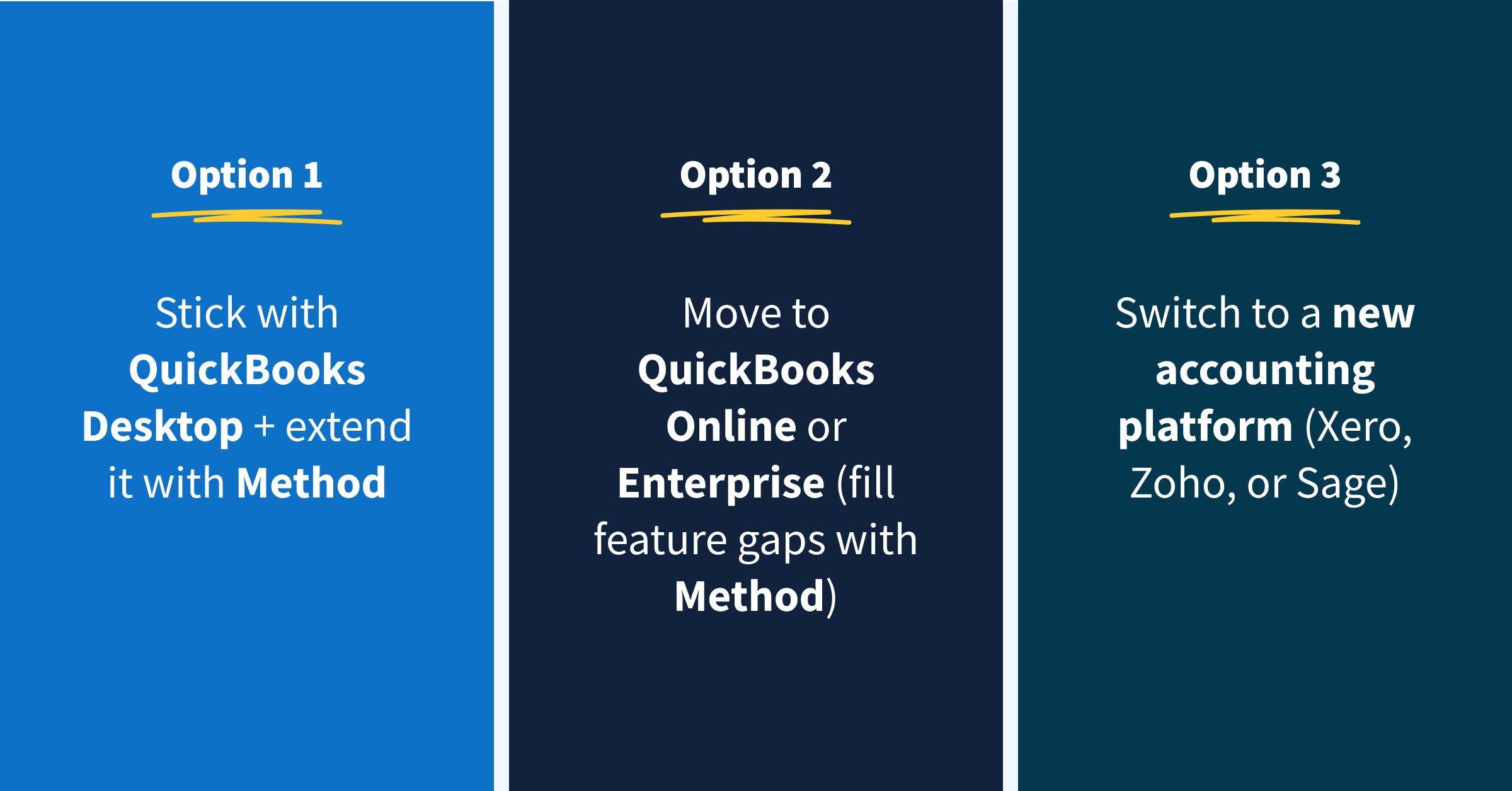
With that said, there are three practical directions you can take:
- Stick with QuickBooks Desktop, but make it work harder for you—adding the tools it lacks, like mobile access, online payments, and workflow automation. Below, we’ll show you how Method can help close these gaps—giving businesses a way to extend the life of QuickBooks Desktop or support a smoother transition to a new platform.
- Move within the QuickBooks family—to QuickBooks Online or Enterprise.
- Switch to a different accounting platform altogether, like Xero, Zoho, or Sage.
This article will walk you through each option and how to decide what fits.
Let’s dive in!
TL;DR
- Intuit stopped selling new QuickBooks Desktop Pro Plus, Premier Plus, Mac Plus, and Enhanced Payroll subscriptions to U.S. customers after September 30, 2024, and Pro, Premier, and Payroll to new Canadian subscribers in April 2025. Existing subscribers can still renew, and QuickBooks Desktop Enterprise remains available.
- Desktop 2024 is the final annual non-Enterprise release, and there’s no Desktop 2025 version. QuickBooks Desktop 2023 reached end of support on May 31, 2026, but Desktop 2024 follows a different model. Intuit says Pro Plus 2024, Premier Plus 2024, and Enterprise 24.0 will continue receiving support, product updates, security patches, compliance updates, and feature improvements for years to come, with no scheduled sunset date.
- QuickBooks Online is the most direct cloud replacement for most small businesses leaving Desktop.
- QuickBooks Desktop Enterprise is the choice if you need advanced inventory or job costing and want to stay in the Desktop ecosystem.
- Xero, Sage 50, and Zoho Books are full accounting alternatives for businesses ready to leave QuickBooks entirely.
- Method CRM is the best fit when QuickBooks still works for accounting but your sales, quoting, order, and customer workflows are broken or stuck in spreadsheets. In Method’s analysis of 465 manufacturing and distribution prospect calls, 82% cited order management as their top operational pain point.
What changed with QuickBooks Desktop, and do you actually need to switch?
Although the stop-sell date is a real one, it doesn’t mean QuickBooks Desktop just stops working on that day, or that every Desktop product is following the same timeline. Existing subscribers can still renew and continue using their current subscriptions, while QuickBooks Enterprise remains available to new customers.
QuickBooks Desktop 2023 reached end of support on May 31, 2026, but Desktop 2024 is in a different position. Intuit continues to support and update the 2024 release, with several in-product updates arriving through 2025 and 2026.
What changed is how Intuit develops and sells QuickBooks Desktop. Instead of releasing a new version each year, Intuit has moved Desktop 2024 to a continuous-update model, with new features, product improvements, security updates, and support delivered through in-product releases. At the same time, Intuit has restricted new sales of several Desktop products and positioned Enterprise as its flagship Desktop offering.
Support windows continue to close: QuickBooks Desktop 2023 support ended in May 2026.
For the full picture of what Intuit changed and what it means for existing users, see our detailed guide on the discontinuation of QuickBooks Desktop.
Quick answer: Do you actually need to switch?
Not always. If your main frustrations are limited mobile access, disconnected quoting, manual follow-ups, or inefficient order workflows, you can solve them without replacing QuickBooks at all. But let’s say you’re noticing that Desktop itself is missing advanced features, or becoming harder to access and integrate with. In these cases, then yes, a migration plan makes sense.
What changed with QuickBooks Desktop—and what the stop-sell actually means
Before we get into the details about alternatives, let’s do a quick recap of exactly what’s changing, as well as what’s staying the same.
Not all Desktop editions have been affected by the stop-sell
Intuit stopped selling new QuickBooks Desktop Pro Plus, Premier Plus, Mac Plus, and Enhanced Payroll subscriptions to U.S. customers after September 30, 2024. In Canada, Intuit stopped selling Desktop Pro, Premier, and Payroll to new subscribers in April 2025. Existing subscribers in both regions can continue to renew their subscriptions.
These two options are still available to you if you want to become a new subscriber:
- QuickBooks Desktop Enterprise — Intuit’s high-end desktop product, with support for more users, advanced inventory management, job costing, and industry-specific editions.
- Accountant editions and ProAdvisor bundles — still available to accounting professionals through Intuit’s ProAdvisor Program and select reseller partners.
What the stop-sell means for future support, features, and integrations
You can keep using QuickBooks Desktop if you already have it, and you can still renew your license. But this shift signals a long-term change in Intuit’s direction: a move toward cloud-first products and subscriptions.
And that has consequences, including:
- Older versions are still losing support: QuickBooks Desktop 2022 reached end of support on May 31, 2025, followed by Desktop 2023 on May 31, 2026.
- Desktop 2024 breaks that pattern: Intuit continues to support and update Desktop 2024, with several in-product releases arriving through 2025 and 2026. Intuit has also said there is no scheduled discontinuation date for Desktop 2024 at this time.
- New subscriptions are still restricted: The change doesn’t reverse the 2024 stop-sell. New U.S. customers still can’t purchase Pro Plus, Premier Plus, Mac Plus, or Enhanced Payroll directly from Intuit, while existing subscribers can continue to renew.
- QuickBooks Enterprise remains available: Businesses that want to stay with desktop accounting can still purchase Enterprise as a new customer.
For businesses in manufacturing, field services, or wholesale, where QuickBooks Desktop’s job costing and inventory features still fit their needs, the decision may be less about replacing Desktop and more about whether their current setup can support the rest of their workflows.
Option 1: Stick with QuickBooks Desktop, but extend its life with Method
If you plan to stay on QuickBooks Desktop, there are ways to make it work better for your business today (and buy yourself more time before making a full switch). But sticking with Desktop also means working around its growing limitations.
The limitations with QuickBooks Desktop—and how to fix them
Method is a CRM workflow tool with a two-way QuickBooks sync, including QuickBooks Desktop.
Because Method syncs with your QuickBooks Desktop data in real time, is highly customizable to the unique needs of your business, and enables full CRM functionality for your business, it works as a perfect stop-gap to QuickBooks Desktop limitations. Your team can access and update customer info, transactions, and key workflows from the cloud, without changing your accounting system.
Here’s the situation most QuickBooks Desktop users actually face: the accounting works fine. According to internal Method data based on 465 manufacturing and distribution prospect calls, 82% of prospects cite order management as their top operational pain point, and 86% are running QuickBooks alone or QuickBooks alongside spreadsheets. The accounting software isn’t the problem — the workflows around it are.
That’s why the lowest-risk path is often to extend QuickBooks Desktop rather than replace it.
Explore how Method integrates with QuickBooks Desktop here.
| ❌ QuickBooks Desktop limitation | 🙅 Why it’s a problem | 😎 How to fix it with Method |
| Local-only access | QuickBooks Desktop runs on a computer or hosted server, so accessing it from elsewhere usually requires remote access or a hosting setup. | Method syncs your QuickBooks Desktop data to the cloud in real time, so your sales and service teams can create estimates, invoices, or work orders from anywhere—no remote desktop required. |
| Limited users | Most QuickBooks Desktop editions cap users at three or five. That’s a challenge for growing businesses or teams working across departments and locations. | Method removes those user caps. You can give as many people as needed access to the workflows they use—without paying for additional QuickBooks licenses. |
| Fewer “offline” integrations | Many CRMs, field service apps, and e-commerce tools now focus on QuickBooks Online. That leaves QuickBooks Desktop users with fewer direct integrations and more manual workarounds. | Method offers built-in CRM, portals, and automation tools that sync directly with your QuickBooks Desktop data. This helps you fill the integration gaps without switching systems. |
| Version-dependent support | Older Desktop releases have reached end of support, but Intuit has moved Desktop 2024 away from its previous three-year lifecycle. Pro Plus 2024, Premier Plus 2024, and Enterprise 24.0 now receive ongoing in-product updates, with no scheduled sunset date. | Method adds modern features like approval workflows, online payments, time tracking, and custom reporting—without the need to upgrade or migrate your accounting platform. |
| Fewer cloud-based features and integrations | Desktop 2024 is still receiving updates, but QuickBooks Online offers broader cloud access and connects with a larger selection of newer apps. | Method adds customizable CRM, workflow automation, online payments, portals, and other tools while keeping QuickBooks Desktop as your accounting system. |
If you’re planning to stay with QuickBooks Desktop for now, the key question is no longer “Can I keep using it?”—it’s “How can I make it work better for my business today?” Method gives you the tools to do exactly that.
Case Study: How a manufacturing company adopted Method and stayed with QuickBooks Desktop
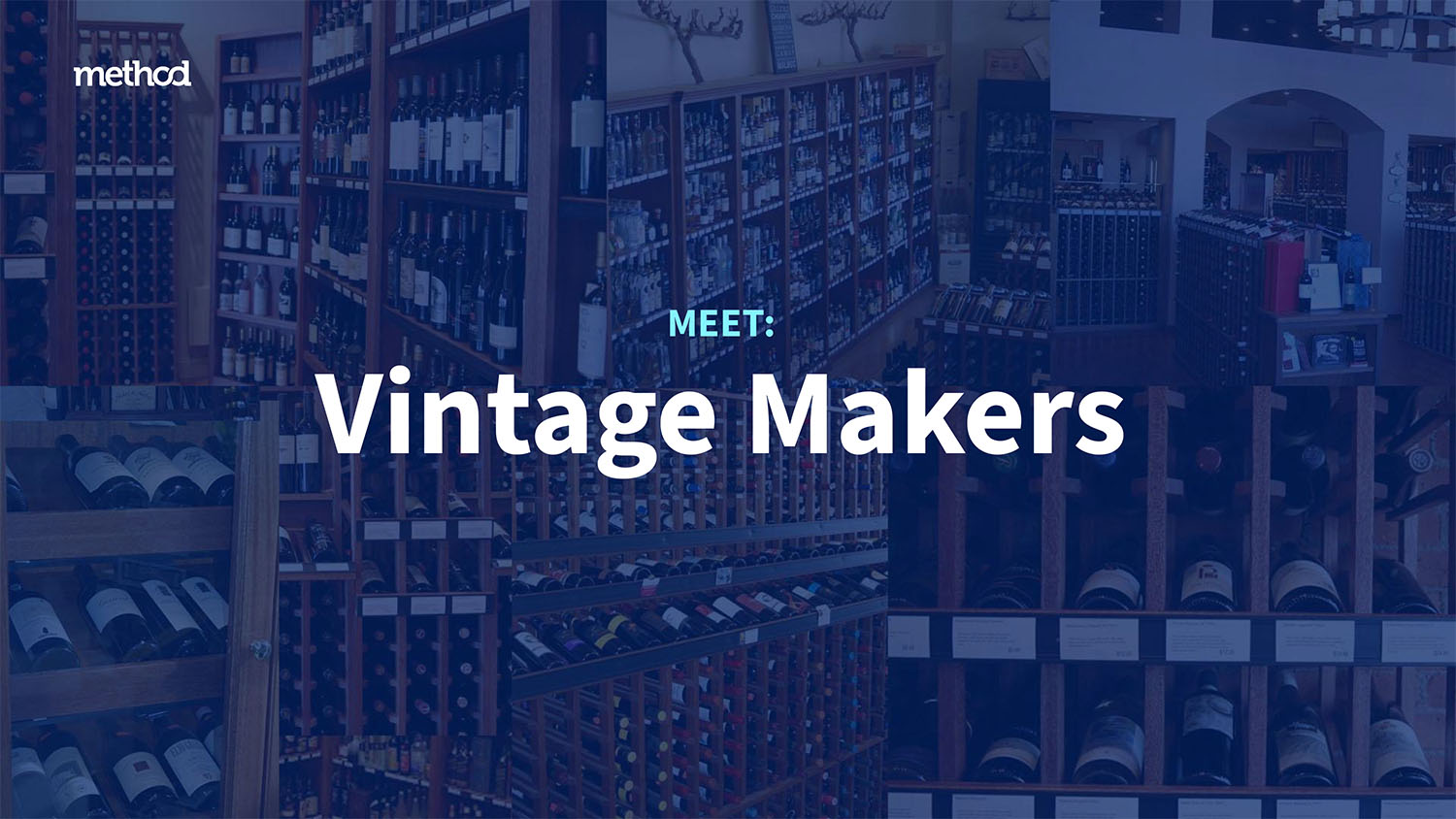
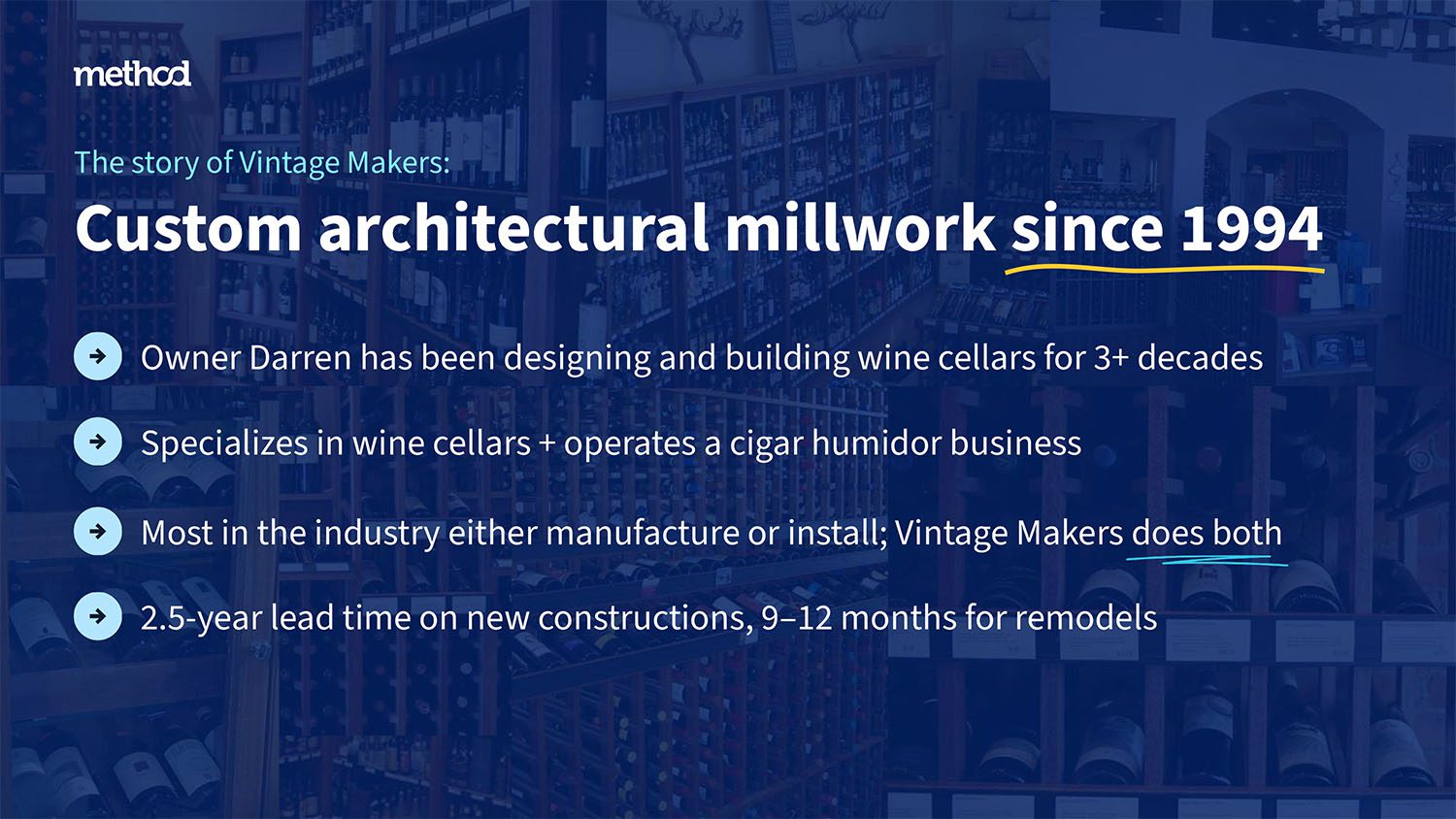
For example, Vintage Makers—a New Hampshire-based builder of custom wine cellars and cigar humidors—had relied on QuickBooks Desktop for 25 years but hit serious bottlenecks once it expanded into six states with different tobacco-excise taxes.
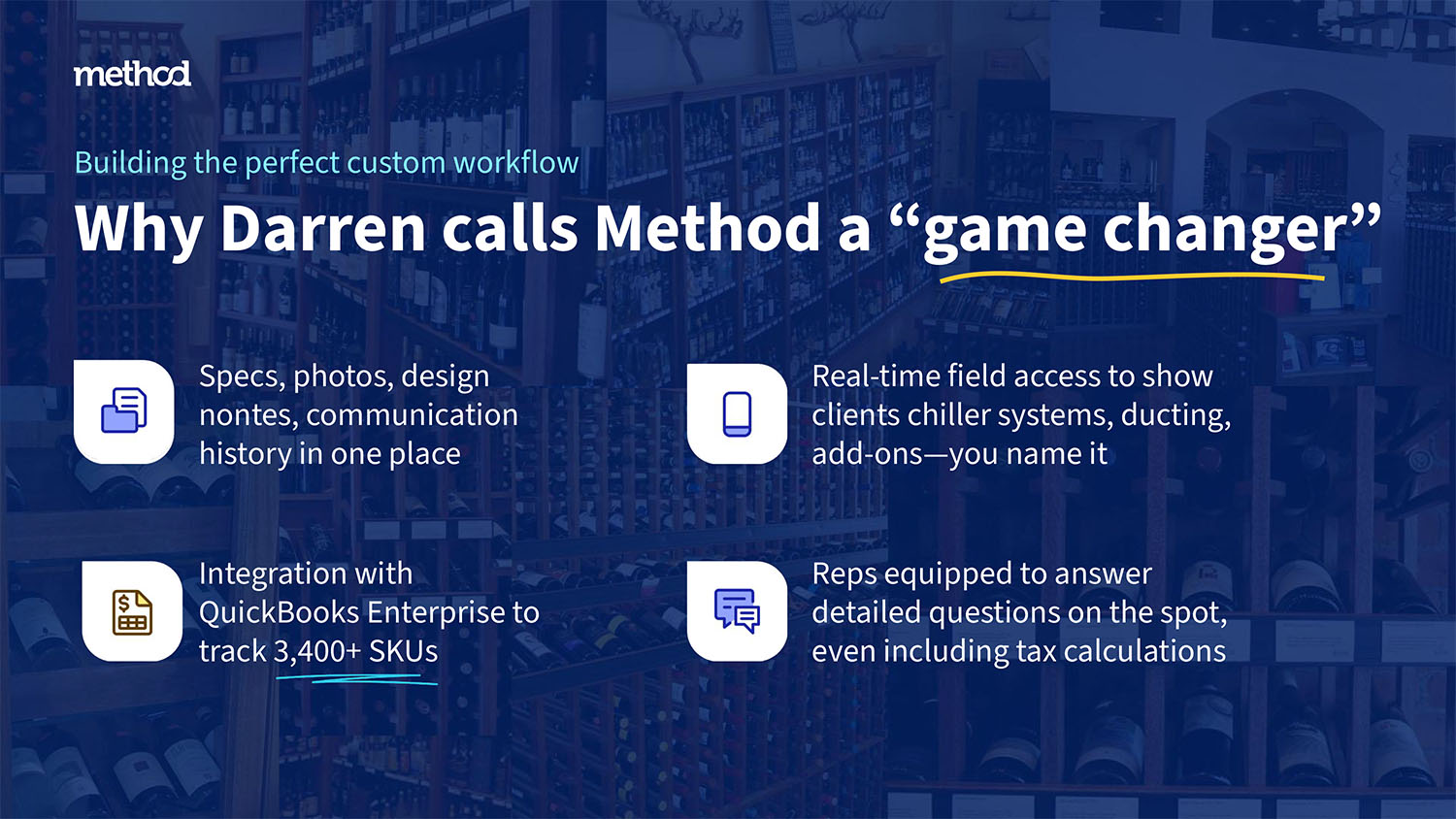
Instead of swallowing the cost of a full ERP, the team adopted Method, whose real-time two-way sync pipes every work order, invoice, and tax detail straight into their existing QuickBooks file, eliminating manual data entry.
Now they can schedule jobs, capture field notes, and issue customer paperwork from anywhere while keeping QuickBooks Desktop as their accounting engine (minus the clutter that used to slow them down).
–> Read the full Vintage Makers story here
Option 2: Move up within the QuickBooks ecosystem
If staying with QuickBooks Desktop is not an option, you could choose to stay within the familiar QuickBooks ecosystem, but move to a version that’s still supported and actively updated—QuickBooks Online or QuickBooks Enterprise. Both options have strengths, but neither is a direct replacement for Desktop.
QuickBooks Online: More accessible, but with trade-offs
Thinking about swapping QuickBooks Desktop for QuickBooks Online? Here’s the quick-scan view: what each tier of QuickBooks Online costs, which Desktop power tools you’ll leave behind, the potholes to watch during migration, and how Method CRM can patch the gaps so you don’t have to re-engineer your entire workflow.
First up, moving to QuickBooks Online means you’ll have to pay a subscription fee. Intuit also announced pricing changes for renewals that took effect on August 1, 2026, and those changes are reflected in the table below.
Here are your options:
| QuickBooks Online plan | Monthly price* | Included users | Stand-out extras |
| Simple Start | $38 | 1 | Core bookkeeping, invoicing, bank feeds |
| Essentials | $85 | 3 | Bills, time tracking, multi-currency |
| Plus | $140 | 5 | Basic inventory, projects, class/location tracking |
| Advanced | $340 | 25 | Batch transactions, custom fields, Excel sync, role-based access |
*Standard U.S. list prices
Key Desktop features that don’t survive the move (and how to claw them back)
Unfortunately, in the move, you will be losing some Desktop features. Here’s what will be impacted (and how you can bridge the gap with Method):
| Lost features | How it worked in Desktop | What you can do in QuickBooks Online | Method CRM (or other) fix |
| Sales Orders | Track orders before invoicing | No native support | Method’s Sales Order app handles ordering & syncs the invoice to QuickBooks Online |
| Advanced inventory (multi-site, serial/lot, barcodes) | Built-in with Desktop Enterprise | Only FIFO inventory in Plus/Advanced; no multi-site | Use Method + an inventory add-on (e.g., Fishbowl) that syncs with QuickBooks Online |
| Price Levels / custom pricing | Automatic per-customer price rules | Feature not available | Create pricing rules in Method or use a pricing plugin |
| Add/Edit Multiple Lists | Mass updates in grid view | Not available | Bulk-edit lists inside Method, then sync |
| Sales Rep field & rep reports | Field on every sales form | Absent | Track reps and run rep-level reports in Method |
Migration “gotchas” to plan for
- Attachments & custom templates: don’t convert—export them first.
- Audit trail & reconciliation reports: history stays in the old file; save PDFs for compliance.
- Some lists/transactions: Sales Orders, Price Levels, Memorized/Batch transactions, and many custom fields never make the jump.
After import, verify inventory quantities (they’re re-calculated to FIFO) and rebuild any custom workflows inside QuickBooks Online or Method.
Tech advisor Dan DeLong (Founder of Danwidth, LLC, Chief Empowerment Officer @ School of Bookkeeping, Host of QuickBooks Power Hour), works directly with businesses migrating from QuickBooks Desktop to QuickBooks Online. His experience captures the real-world challenge:
“The fact that it looks completely different is part of the challenge. I give clients 30 days to kick the tires, and we use the Desktop app with desktop view to lessen the learning curve. Some try it and decide to stick with Desktop and pay the price. Others realize they need to move to QuickBooks Online because they have other applications that only work with QuickBooks Online.”
His advice reflects a pattern that holds across many Desktop users: the decision isn’t purely technical. Other factors, like workflow continuity, team adoption, and whether the new system solves the actual problem, or just introduces a new one, need to be considered, too.
If you’re planning a move to QuickBooks Online, this guide on migrating will walk you through what to expect.
QuickBooks Enterprise: Deeper features, desktop-based software
Enterprise is the main QuickBooks Desktop product still available to new customers. Existing Pro Plus, Premier Plus, and Mac Plus subscribers can continue renewing their subscriptions, but new customers who want to adopt QuickBooks Desktop are generally directed toward Enterprise.
| Enterprise tier | Annual price* | Max concurrent users | What you gain vs Pro |
| Silver | $1,340 | 1 – 30 | Larger file limits, Priority Circle support, advanced reporting |
| Gold | $1,740 | 1 – 30 | Silver + built-in payroll |
| Platinum | $2,140 | 1 – 30 | Gold + Advanced Inventory (multi-warehouse, serial/lot, barcodes) and Advanced Pricing rules |
| Diamond | $4,200 | 1 – 40 | Platinum + Assisted Payroll, QuickBooks Time Elite, Salesforce connector |
*U.S. list prices
Feature-for-feature, Enterprise is a straight-up superset of Pro—you don’t give up any core functionality when you move over. Everything Pro can do, Enterprise can do, plus:
- more users (up to 40 vs. 3)
- bigger file and list limits
- advanced inventory and pricing modules
- deeper job-cost and industry reports
- built-in payroll in Gold+ tiers
So, in terms of capabilities, nothing disappears.
What does change (and can feel like a “loss” if you weren’t expecting it):
| Trade-off | Why it matters |
| Cost scales fast | Enterprise is subscription-only; the entry price is already higher than Pro and it climbs with every user you add. |
| Windows lock-in | Still desktop software. Remote or Mac access means paying for hosting or using remote-desktop workarounds. |
| Complexity | The interface is familiar, but advanced inventory, pricing rules, and granular permissions all need setup and training. |
| Heavier IT footprint | You’re now managing a larger database and (often) a terminal-server or hosted environment. |
| No CRM / field-mobile layer | Same as Pro: non-accounting workflows still need a third-party app (e.g., Method CRM) if you want leads, portals, or mobile order entry. |
Bottom line: you don’t lose features—just simplicity and a chunk of your budget. If you need the scale and power, Enterprise is the only QuickBooks Desktop option left. If you loved Pro precisely because it was cheap, lightweight, and easy, those qualities won’t survive the jump.
Option 3: Switch to a new accounting platform
For some businesses, the end of QuickBooks Desktop is the push to start fresh.
There are many accounting platforms to choose from—here we’ve narrowed it down to just three options that could rival what you got with QuickBooks Desktop. They are:
- Xero. A flexible, cloud-based ledger, with unlimited users and a growing app ecosystem.
- Zoho Books. An affordable, feature-rich option for small teams.
- Sage 50. The desktop-based options with strong inventory and job costing features.
Let’s take a closer look at how each one of these compares.
Xero: Flexible, cloud-based accounting with unlimited users
Xero gives you unlimited users, automatic updates, and no Windows maintenance—but some QuickBooks Desktop features don’t make the trip. Below is the overview: what each Xero tier costs, which Desktop staples you’ll forfeit, and where Method CRM (or other add-ons) can close the gaps.
Xero business plans (U.S. list prices)
| Xero plan | Monthly price* | User limit | Key limits/extras |
| Starter (Early) | $27 | Unlimited | 20 invoices & quotes, 5 bills per month |
| Standard (Growing) | $59 | Unlimited | Removes transaction caps |
| Premium (Established) | $97 | Unlimited | Adds multi-currency support |
What Desktop features vanish—and how to claw them back
| Lost in the move | How it worked in Desktop | Xero’s setup | Method CRM / app workaround |
| Sales Orders | Track orders before invoicing | No native module | Manage orders in Method; push final invoice to Xero |
| Assemblies / BOM | Build components into finished goods | Not supported | Use a manufacturing add-on (e.g., Katana, Unleashed) that syncs with Xero |
| Customer-specific price levels | Auto-applied pricing rules | Not available | Create pricing logic in Method before invoices sync |
| Multi-location or barcode inventory | Advanced Inventory | Single-location basic stock; no barcodes | Connect an inventory app (DEAR, Cin7) or let Method track locations and feed quantities to Xero |
| Granular user permissions | Role-based + field-level controls | Only broad roles | Route staff through Method’s fine-grained permissions; Xero holds final ledger |
Migration “gotchas”
- Xero recommends ≤ 700 chart-of-account codes and ≤ 4 000 tracked items—clean up before import.
- Templates, attachments, sales orders, and other non-posting transactions won’t migrate automatically—export or recreate post-cut-over.
- If you stay on the cheapest tier, remember the 20-invoice/5-bill cap—many QuickBooks users outgrow it fast.
Bottom line: Xero swaps desktop headaches for cloud convenience, but you’ll surrender some of QuickBooks Desktop’s deeper inventory, pricing, and order-management tools. Pair Xero with Method CRM or specialized add-ons, and you can regain most of that muscle—without losing the browser-based simplicity you’re after.
Zoho Books: Affordable accounting with built-in inventory and automation
On the surface, Zoho’s cloud app is affordable, mobile-friendly, and generous with user seats—but the move also strips out key Desktop staples (built-in payroll, assemblies, deep job-costing, Method CRM sync, and a rich add-on ecosystem). The snapshot below lays out Zoho’s pricing tiers, pinpoints what you’ll leave behind, and flags the extra tools or workarounds you’ll need to keep critical workflows humming.
Plan snapshot (US prices)
| Zoho Books plan | Monthly price* | Users included | Stand-out extras / caps |
| Free | $0 | 1 + accountant | 1 000 invoices/yr, basic bookkeeping |
| Standard | $20 | 3 | 5 000 invoices/yr, progress invoicing, custom fields |
| Professional | $50 | 5 | Adds projects, sales & purchase orders, basic stock tracking |
| Premium | $60 | 10 | Vendor portal, budgeting, deeper customization |
| Elite | $120 | 10 | Multi-warehouse, barcode/serial inventory, Shopify sync |
| Ultimate | $240 | 15 | Advanced analytics, 25 custom modules, highest limits |
*Annual-billing price shown; monthly billing runs slightly higher.
What you’ll miss from QuickBooks Desktop
| Desktop feature you relied on | Zoho Books reality | Workaround (none via Method) |
| Integrated U.S. payroll & 1099 e-file | Only a separate Zoho Payroll add-on, single-state support | Use a third-party payroll service; expect manual sync-back |
| Build Assemblies / BOM & light manufacturing | Zoho Books supports composite items in its Elite plan; businesses on lower tiers may need to upgrade or use Zoho Inventory for assembly workflows. | Adds cost and another interface |
| Full job-costing reports | Projects add-on tracks time/costs but no item-level job P&L | Spreadsheet, or bolt on Zoho Projects + manual allocations |
| Fixed-asset manager & depreciation | Absent | Track in Excel or standalone asset software |
| Deep add-on ecosystem (Fishbowl, etc.) | Far smaller marketplace; niche Desktop integrations disappear | Custom API/Zapier work or change processes |
| Two-way sync with Method CRM | No integration—Method only syncs with QuickBooks & Xero | Switching CRMs (e.g., Zoho CRM) and re-building workflows required |
Migration watch-outs
- 700-account COA, 10 000 contacts, 4 000 tracked items—clean house first.
- Only lists and open balances import cleanly; attachments, custom templates, sales orders stay behind—archive your QuickBooks file.
- Payroll, assemblies, and detailed job costing all shift to separate Zoho apps or manual work—budget time and training.
Bottom line: Zoho Books is inexpensive, mobile, and generous on users, but stripping out built-in payroll, manufacturing, asset, and Method CRM sync means serious extra tooling (and cost) for Desktop veterans. If those gaps matter, weigh them carefully before you trade your all-in-one Desktop toolbox for Zoho’s leaner cloud stack.
Sage 50: Desktop-based accounting with inventory and job costing
Sage 50 is one of the few desktop accounting platforms still actively sold in the U.S. It’s often considered a next step for businesses that outgrow QuickBooks Pro or Premier but aren’t ready to move to the cloud. Sage 50 offers deeper inventory, job costing, and reporting tools than many entry-level systems—but it allows businesses to stick to desktop if they’re not ready to move to a cloud solution.
Sage 50 subscription tiers*
| Edition | Annual price | Users | Stand-out extras |
| Pro | $625/yr | 1 | Core GL, AP/AR, bank rec, basic inventory & assemblies |
| Premium | $1,043/yr | ≤5 | All Pro + job costing, budgeting, multi-company, audit trail |
| Quantum | $1,780/yr | ≤40 | All Premium + role-based security, inventory, industry modules |
*U.S. list prices. Payroll is an add-on.
QuickBooks Desktop feature comparison: kept, tweaked, or missing
| Desktop staple | Sage 50 status | Notes |
| Estimates & Sales Orders | Available | Similar workflow to Desktop. |
| Inventory Assemblies (BOM) | Available (all tiers) | Matches Premier/Enterprise. |
| Multi-user roles | Basic in Pro/Premium; granular only in Quantum | Upgrade if you need tight permissions. |
| Multi-currency | Not supported in U.S. edition | Must invoice in home currency or use Canadian/UK variants. |
| Nested sub-account | Flat COA—no parent/child structure | Departments (Premium+) can mimic groupings. |
| Large add-on ecosystem | Smaller marketplace than QuickBooks | Fewer turnkey integrations. |
Migration “gotchas”
- QuickBooks sub-accounts flatten on import; review chart of accounts and departments.
- If you bill in multiple currencies, Sage 50 US won’t handle it—consider workarounds or different Sage region.
- Sage’s conversion tool brings over lists and open transactions; extensive payroll or old transactional history stays behind, so keep your Desktop file for reference.
- Item setup and departmental reporting are more granular than QuickBooks; schedule user training and parallel testing before cut-over.
Bottom line: Sage 50 replicates most Desktop essentials (job costing, assemblies, high user counts) while dropping multi-currency and relying on a smaller app stack. If those gaps aren’t deal-breakers, it can be a familiar, on-prem alternative as QuickBooks Desktop sunsets.
What should you check before moving away from QuickBooks Desktop?
Here’s a six-point checklist to run through before you choose a path:
- Confirm which QuickBooks Desktop version and subscription you currently use.
- Identify the real issue: accounting, workflows, customer management, or remote access.
- List the features your team relies on most, including reports, payroll, inventory, and job costing.
- Decide whether QuickBooks needs to be replaced or simply extended with better tools.
- Check migration and export options before switching.
- Estimate the total cost over at least 12 months, not just the monthly subscription price.
What are the hidden costs of switching from QuickBooks Desktop?
The subscription price is rarely the biggest number. When you factor in everything involved in moving off QuickBooks Desktop, the real cost of switching is significantly higher than most businesses plan for.
| Cost category | What to consider |
|---|---|
| Migration | Company files, lists, historical transactions, inventory, payroll, and attachments all need planning before you move. |
| Training | Accounting users, sales teams, operations teams, and field users will likely need different onboarding programs. |
| Add-ons | CRM, payments, inventory, reporting, payroll, scheduling, and approval tools may cost extra in the new platform. |
| Workflow rebuilding | Desktop workarounds and custom reports often need to be rebuilt from scratch in the new system. |
| Lost productivity | Switching systems can slow quoting, invoicing, fulfillment, and advanced reporting during the transition period. |
| Admin overhead | Some systems require ongoing configuration, consultants, or dedicated internal admins to maintain. |
How to choose the right QuickBooks Desktop alternative
The right answer depends on what problem you’re actually solving.
Here’s a decision path to help you decide:
- Choose QuickBooks Online if… You want cloud accounting, mobile access, and a more modern QuickBooks experience with a large app ecosystem.
- Choose QuickBooks Desktop Enterprise if… You need advanced inventory, job costing, pricing controls, or industry-specific Desktop workflows, and switching accounting systems carries high risk.
- Choose Xero if… You want cloud accounting and are comfortable leaving the QuickBooks ecosystem entirely. Works best when your accountant knows Xero.
- Choose Sage 50 if… You prefer desktop-style accounting software, but no longer want to stay on QuickBooks Desktop.
- Choose Zoho Books if… You need affordable cloud accounting for a smaller business with straightforward financial workflows.
- Choose Method CRM if… QuickBooks still works for accounting, but your sales, customer tracking, quoting, order management, or field workflows are stuck in spreadsheets or disconnected systems.
You’ve got options, just make the next one count
QuickBooks Desktop isn’t gone yet—but the clock is ticking. If your business still relies on it, the decision you make now will shape how smoothly you operate over the next few years.
By this point, you’ve seen the three main paths forward:
- Extend the life of QuickBooks Desktop with the right add-ons
- Move up within the QuickBooks ecosystem to Online or Enterprise
- Switch to a different accounting platform entirely
The right choice depends on how your business actually works—not just what looks good on a feature list. Your workflows, team structure, and industry requirements should drive the decision.
If you’re unsure, the lowest-risk first step is often the simplest: start by solving the gaps where you feel the most pain. Method can help you add cloud access, mobile workflows, and automation to QuickBooks Desktop—giving you more flexibility now, while keeping the door open to a bigger move later if and when the time is right.
Whether you’re buying time, preparing to switch, or rebuilding your systems, Method can help you get more out of the tools you already use. It’s not a replacement for accounting software—but it can solve the issues QuickBooks Desktop no longer handles well. You can get started with Method here.
Whichever way you go, the worst option is doing nothing. Choose a setup that works for how you actually run your business.
Frequently asked questions
What is the best alternative to QuickBooks Desktop?
The best alternative depends on why you’re leaving. QuickBooks Online is the most direct replacement for businesses that want cloud accounting and want to stay in the QuickBooks ecosystem. QuickBooks Desktop Enterprise is the best choice if you need to stay on Desktop software with advanced inventory or job costing.
Xero, Sage 50, and Zoho Books are full accounting replacements for businesses ready to leave QuickBooks entirely. Method CRM is the right answer when QuickBooks still works for accounting, but your surrounding workflows (CRM, quoting, order management, customer portals, time tracking) are the real problem.
Can I still buy QuickBooks Desktop?
QuickBooks Desktop Enterprise is still available to new customers. QuickBooks Desktop Pro Plus, Premier Plus, Mac Plus, and Enhanced Payroll haven’t been available to new U.S. subscribers since September 30, 2024.
In Canada, Intuit stopped selling QuickBooks Desktop Pro, Premier, and Payroll to new subscribers in April 2025. Existing subscribers of the affected versions can still renew, but Intuit hasn’t committed to long-term feature development for those products.
For more details, see our full breakdown of the QuickBooks Desktop stop-sell.
Should I switch from QuickBooks Desktop to QuickBooks Online?
QuickBooks Online is the right move if you need cloud access, remote team collaboration, or a more modern app ecosystem. It’s not automatically the right move if your business depends on Desktop-specific reporting, advanced inventory, in-depth job costing, or custom workflows that lack direct equivalents in QuickBooks Online.
Plan the migration carefully, run both systems in parallel during transition, and confirm all your critical workflows transfer before cutting over.
What is the best QuickBooks Desktop alternative for inventory?
Some businesses need advanced inventory management. In these cases, QuickBooks Desktop Enterprise is the strongest option in the QuickBooks family. It supports bin tracking, serial and lot number tracking, FIFO costing, and multi-location inventory. QuickBooks Online’s inventory features have improved, but still fall short of the depth of Desktop Enterprise.
For manufacturing and wholesale businesses that need to extend inventory management with order tracking, customer workflows, and sales automation, Method CRM integrates directly with QuickBooks Enterprise to fill those operational gaps.
What is the best QuickBooks Desktop alternative for contractors?
Contractors that rely on QuickBooks Desktop for job costing, progress billing, and subcontractor management have two strong options. QuickBooks Desktop Enterprise includes a construction edition with job costing, certified payroll, and change order tracking. QuickBooks Online’s construction capabilities have expanded, though they aren’t yet on par with Desktop Enterprise’s depth.
For contractors whose main pain is in the field (disconnected work orders, manual scheduling, slow invoicing, or no customer visibility), Method CRM for construction works alongside QuickBooks to manage field workflows, customer communication, and job tracking without replacing your accounting solution.