Woman works on tablet while standing on street.

What is a service item in QuickBooks?

What is a service item in QuickBooks? This blog post explains it to help you manage your small business finances with ease.

What is a service item in QuickBooks? Read More »

Have you ever asked the question, “What is a service item in QuickBooks?” 

Look no further for the answer. Service items are all about simplifying your workload to keep things organized and clear, whether you’re:

  • Invoicing your customers.
  • Monitoring expenses.
  • Assessing your income. 

This blog guides you through understanding and using this powerful functionality to make financial management a breeze for your small business. 

Let’s dive in!

Need an easier way to keep your QuickBooks data up-to-date?

What is a service item in QuickBooks?

A common question among QuickBooks users is “What is a service item in QuickBooks?” In QuickBooks, a service item defines a line item on sales forms that represents services offered by a business. Essentially, a service item is used to track non-physical items. For example, you can create service items for:

  • Consulting.
  • Labor.
  • Professional fees and service charges. 

A service item can be used in sales receipts or invoices as it tracks income and expenses related to specific services. Plus, service items can be linked to specific income accounts, which provides a way to set standard rates for services. 

A service item also makes accurate financial tracking easier, as you can assign it different hourly or flat rate and tax calculations, depending on your needs. It allows for detailed billing of specific services and streamlines job costing for service-oriented projects.

Benefits of using service items in QuickBooks

Now that you have a better understanding of what is a service item in QuickBooks, let’s look at some of its main benefits.

Detailed financial reporting

Using service items in QuickBooks aids in generating detailed reports on service-based income. Leveraging QuickBooks’ reporting features helps in categorizing revenue streams. So, as your team manages financial records, you can draw insights into the profitability of each service with ease.

It also helps you monitor applicable sales tax, as you can create a system that identifies taxable status automatically. By understanding your customers’ spending patterns using charts, you’ll make better decisions on future investments. 

Complete transactions faster

A service item in QuickBooks simplifies the invoicing process for service-based businesses. These tools incorporate customizable fields and options for your services with predefined rates and taxes. 

Additionally, they can have a description that appears on sales forms. This enables quick and accurate billing to save time and reduce errors in your transactions.

Getting started with service items in QuickBooks

Creating a new service item

To create a new service item:

  1. Navigate to the “Products and Services” section.
  2. Select the “New” option from the services list in the settings. 
  3. Choose “Service” as the category type and complete the information box that specifies details like:
    • Name.
    • Description.
    • Service date.
    • Sales price/rate.
    • Sales tax (if applicable). 

Here, you can also include a checkbox with options like usage in estimates and invoicing.

You can also specify if each item is used in invoicing and is assignable to a customer or job. This sets a foundation for detailed tracking and accurate billing of your services. 

Editing or deleting an existing service item

You can edit or delete a service item to reflect changes in your offerings or pricing, giving you an entirely editable history. 

To do this, in the “Products and Services” list, find the item you want to modify or remove. Then choose the appropriate option from the “Action” column on the screen.

Make sure any changes align with your current business services and pricing strategy. 

Setting up preferred vendors for service items

Each supplier is an unofficial business partner whom your success hinges on.

You can Identify and assign a preferred vendor to specific service items, ensuring consistency and ease in your purchasing and billing processes. This also:

  • Simplifies procurement and expense tracking. 
  • Aids in quick reordering.
  • Maintains consistency in service quality and costs.
  • Facilities in managing expenses linked to cost of goods sold account (optional).

To set up this functionality, specify the preferred supplier under each service item’s details. 

Setting up defaults for sales receipts and invoices

Customize defaults in QuickBooks for your sales receipts and invoices through the gear icon. Setting up defaults incorporates necessary fields that you might forget to include in a manual process. Used properly, a default describes commonly used information on your sales forms. This includes:

  • General terms.
  • Usual quantities.
  • Unit price lists.
  • Sales description.

These settings ensure every transaction adheres to your business standards without requiring manual input each time. As a result, you save time and ensure consistency. 

Accessing the gear icon for bundle items and action columns

The gear icon in QuickBooks provides advanced options for managing service items. Here, users can:

  • Create bundled items.
  • Group multiple services into one package.
  • Customize action columns for better organization and tracking.

Get everything you need to run your business in one place.

Types of service items in QuickBooks

To really answer the question, “What is a service item in QuickBooks?” it’s important to understand the four different types of service items. 

Inventory

Inventory items in QuickBooks are tangible products that your business sells, including the little things like nuts and bolts. Inventory items make it easy to track quantities and costs. This way, you maintain accurate stock levels and better understand your product-based revenue. 

Non-inventory

Non-inventory items are products you buy or sell but do not track quantities as a part of your inventory. These are ideal for one-time purchases or payments in your expense account and could include:

  • Supplies like office supplies and cleaning products.
  • Materials used in providing services. 
  • Digital resources like ebooks.

Services

Services are non-physical items your company bills to customers, like: 

  • Labor.
  • Consulting and training.
  • Subcontractor services. 

A service is distinct from inventory or non-inventory items. It’s billable but does not affect inventory counts. This offers flexibility in pricing for different clients or projects, given that services aren’t limited in quantity. 

Note that you can assign a service item a sub-item under parent service when there is more than one choice for it. Sub-items are part of items list, but do not inflate your inventory count.

Bundles

Bundles are a combination of products and services sold together. They simplify the selling process and are customizable for different customer needs. 

Bundles also make billing and tracking of grouped offerings easier, which are often used for promotional or package deals.

Frequently asked questions (FAQs)

How can I change the service or inventory item types in QuickBooks?

In case you’re wondering again, “What is a service item in QuickBooks?” remember that it’s a type of item that represents services offered by a business.

To change an item type, go to the “Products and Services” list, select the item, and edit its type. Note that any adjustment to your inventory can affect reporting and inventory tracking.

How many products and services does QuickBooks have?

QuickBooks offers a large amount of products and services, which are all customizable to meet the specific needs of your business. These include: 

  • Online. 
  • Solopreneur. 
  • Money.
  • Payroll.
  • Contractor.
  • Payments.
  • Time.
  • Enterprise for accountants.

QuickBooks also offers free video tutorials to help you implement each solution. Depending on your subscription plan, it allows for a flexible number of products and services. Check QuickBooks’ service limits for specifics on your version.

The best part is, QuickBooks connects with other tools, including integration with time-tracking to boost your services further.

How do I categorize services in QuickBooks?

You can categorize services in QuickBooks based on their nature or business department, during the service item creation or editing process. In case you’re wondering, “What is a service item in QuickBooks?” it’s a type of item that represents services offered by a business. 

You can assign service items a linked income account, which provides a way to set standard rates for services. You can also use QuickBooks to identify and assign preferred vendors or suppliers for specific service Items as it integrates with time tracking for hourly services, which further categorizes them.

How can I create an inventory item?

To create an inventory item, navigate to “Products and Services,” select “New,” and choose “Inventory” as the type. Next, input details like name, SKU,  cost, and quantity on hand. This is essential for tracking stock levels and the cost of goods sold. These items can be added to invoices and sales receipts.

Extend your potential with QuickBooks by starting a free trial with Method

Image credit: Tom Merton/Caia Image via Adobe Stock 

Serious elderly woman working laptop. Business woman busy working on laptop at home office

What is a CRM software? All you need to know

What is a CRM software? Find out how it works and the different types and benefits it offers to grow your business. Read here!

What is a CRM software? All you need to know Read More »

Whether you’re a budding entrepreneur or a seasoned executive, understanding customer relationship management (CRM) is key to elevating your business. 

In this blog, you’ll answer the question, “What is a CRM software?” You’ll do a deep dive into CRM software and learn all about:

  • How it works.
  • Its different types.
  • The benefits it offers. 

By the end, you’ll know how to choose the right CRM for your unique business needs. 

Let’s get started!

What is a CRM software?

First, it’s important to answer the question, “What is a CRM software?” A CRM is a tool that is designed for customer relationship management. 

It centralizes customer data to provide a unified platform that enhances business operations. It also optimizes customer experience, as you’re able to respond to customer needs more quickly.

While that’s the core purpose of a CRM, there are several different types that offer various functions.

Types of CRM software

Operational CRM

Operational CRM simplifies daily operations in:

  • Marketing.
  • Sales.
  • Customer service. 

It streamlines sales processes and automates repetitive tasks to boost efficiency.  It accomplishes this in several ways. For example, an operational CRM:

  • Efficiently manages leads to close more deals.
  • Improves marketing campaign effectiveness.
  • Supports efficient customer service. 

Collaborative CRM

Collaborative CRM software lets your teams collaborate and sync information across departments. It ensures that teams have access to consistent, up-to-date customer information. As a result, you enhance team morale and your customer journey.

Analytical CRM

Analytical CRM helps you analyze and segment customer data to garner valuable insights into customer behavior and interaction history. As a result, you support strategic decision-making. 

Your analytical CRM collects data from various customer interactions to make it easy to uncover patterns and trends. This information helps your business craft personalized marketing strategies.

Benefits of using CRM software

Now that you’ve learned what is a CRM, let’s look at its main benefits.

Better customer service

CRM software offers quick and easy access to a customer’s history and preferences, which optimizes customer service and support. With a more personalized approach, you satisfy customer needs and build stronger relationships.

Moreover, some CRMs optimize service by offering tools like customer portals. These tools give your customers all-day access to support and resources.

Increased sales

CRM systems effectively monitor and manage leads. They ensure proper sales pipeline tracking, which enhances the likelihood of converting them into potential clients. 

This is because a CRM simplifies your sales funnel and ensures that you don’t miss any opportunities. As a result, it boosts sales and revenue growth. 

Improved customer retention

Through tracking customer activities and interactions, CRM tools help your company engage and nurture long-term relationships. This sustained engagement leads to increased customer loyalty and retention.

Detailed analytics

A CRM provides analytics and reporting features that give you critical insights into your operations. Even better, you get a deep dive into:

  • Customer behavior. 
  • Sales trends. 
  • Marketing patterns — and much more. 

Overall, this rich data gives your organization an advantage through better-informed decisions. 

Higher productivity and efficiency

Imagine if you could automate your way to stress-free days. Well, with CRM task automation, you can. 

It takes control of routine tasks to save you time and resources. As a result, this enhances overall business efficiency and reduces manual data entry.

Centralized database of information

CRM systems store and centralize all customer-related information into a unified database. Coupled with collaboration features, this ensures that your team members always work with the same, up-to-date information. 

Automated sales reports

CRM software also automates the process of generating sales reports. This saves valuable time and provides consistent, accurate data on your sales pipeline for analysis. 

More accurate sales forecasting

CRM tools provide accurate sales forecasting tools to analyze past trends and organize customer data. 

Using historical data, CRM tools help you predict future sales trends to plan more effectively and strategically.

Who should use a CRM?

To better understand who should use a CRM, it’s useful to revisit the question, “What is a CRM?” once more. CRM software is a versatile tool that benefits any business looking to:

  • Enhance customer interactions.
  • Simplify sales processes.
  • Make more informed, data-driven decisions. 

With this in mind, a CRM is particularly useful for businesses that want to track their interactions comprehensively and nurture long-term customer relationships.

How does CRM software work?

Data collection and storage

From contacts to accounts and transaction history, CRMs efficiently gather, organize, and store data from various customer interaction points, such as:

  • Emails.
  • Social media.
  • Customer service inquiries. 

This creates a rich and comprehensive database of customer information, all conveniently located in one place.

Creating customer profiles

A CRM aids in segmentation and targeting. With this software, you can analyze and segment customer information to create detailed customer profiles. These profiles include: 

  • Preferences.
  • Purchase history. 
  • Phone or video calls.
  • Interaction logs. 

As a result, this lets you tailor your approach to individual people in your customer base.

Automating processes and workflows

One of the biggest considerations to make when answering the question, “What is a CRM?” is to note the power of automation. 

CRMs automate various activities and repetitive tasks across several departments, from managing marketing campaigns to sending customer follow-ups. Workflow automation drives efficiency and lets your staff focus on more complex tasks.

Analyzing customer interactions and behaviors

CRM software tracks customer interactions across channels to give you valuable insights. 

As your software analyzes data from various customer interactions, you can better:

  • Understand customer preferences.
  • Identify opportunities for your sales team. 
  • Craft targeted marketing strategies.

Integrating with other tools and services

The best CRM software integrates with other business tools and apps to enhance functions and data synchronization. This ensures a seamless information flow, which boosts your overall operational efficiency. 

Key features of a CRM system

Contact management

A cornerstone feature, contact management lets companies store and manage information on all their contacts, including:

  • Leads.
  • Existing customers.
  • Stakeholders.
  • Team members.

This ensures that your information stays organized and accessible.

Lead management

CRM technology monitors and optimizes the lead management process — from the first call or contact all the way to conversion. It accomplishes this with lead scoring and automated workflows that prioritize and tailor engagement for effective conversion.

Sales forecasting

When it comes to sales forecasting, your CRM uses historical data and current trends to predict future sales. This helps you with:

  • Setting realistic targets.
  • Resource planning.
  • Strategic adjustment.

Email integration

Your CRM must connect to your email platform of choice.

Email integration ensures that you can capture all email interactions with customers and store them in your CRM system. It lets your customer service and sales teams:

  • Track the history of conversations.
  • Monitor responses.
  • Ensure timely follow-ups. 

Plus, you can set up email templates and automated responses for common inquiries to save more time for value-added activities. 

This integration also provides valuable data for email campaign management and analysis.

Interaction tracking

Interaction tracking in your CRM records every customer touchpoint for you to gain insights from. It offers a 360-degree view of the customer journey for improved service and tailored future interactions.

Document storage

CRMs allow for secure document storage and file sharing. They give your team centralized access to important files and documents like contracts and invoices — according to the rules and permissions you set.

Task management

In a CRM, task management enhances productivity, as it lets you create, assign, and track customer-related tasks and sales processes. 

You can also use integrations with calendar tools and set up alerts to remind team members of deadlines and follow-ups. 

Effective task management prioritizes activities so that you can focus your resources on the most impactful tasks and keep momentum in your sales cycle.

Analytics and reporting

A CRM’s analytics and reporting capabilities provide you with in-depth insights into your:

  • Customer behavior.
  • Sales performance.
  • Overall business health. 

Even better, you get customizable dashboards that offer real-time data visualization. This helps you understand key metrics quickly to make data-driven decisions. 

With regular reporting, you’re aware of your strengths, weaknesses, and opportunities. With these in mind, you can make continuous improvements to your business. 

What to consider when implementing a CRM solution for your business

Assessing your business needs and goals

Start by evaluating fundamental aspects of your organization, such as:

  • Your business size.
  • Customer base.
  • Sales process complexity. 

Then, identify your key challenges, like enhancing customer service or improving sales efficiency. 

Finally, set clear, achievable objectives for your CRM, such as improving lead management or simplifying your marketing efforts. Make sure that these goals are measurable and attainable.

Choosing the right CRM software for your business

Select a CRM that matches your needs in areas like scalability and user-friendliness. Make sure it has essential features like:

  • Contact management.
  • Sales forecasting.
  • Analytics. 

Also, consider the benefits of cloud-based vs. on-premise solutions.

Finally, consider how your choice integrates with your existing tools and if it is customizable to fit business needs. 

To get a better picture, take advantage of free trials of your top software choices before you make a financial commitment.

Setting up the software and training employees

Focus on efficient software setup, especially when it comes to data migration and system integration. 

It’s a good idea to prioritize a comprehensive employee training program to get the most out of your CRM. Provide regular training sessions and support materials like user guides and video tutorials. 

Make sure to continuously gather feedback, so you optimize your system and processes as your business grows.

Which CRM is best for your business?

The best CRM for your business depends on various factors, including your:

  • Business size.
  • Industry.
  • Specific needs. 

Small businesses often benefit from user-friendly, cost-effective solutions without the bells and whistles. When choosing a CRM, consider factors such as:

  • Ease of use.
  • Integration capabilities.
  • Scalability.
  • Customer support and ticketing.

Method is the #1 CRM for QuickBooks and Xero users. It boasts a powerful two-way sync with the accounting software and the ability to customize your entire software. The best part is that Method scales with you as you grow, without compromising on efficiency. 

CRM pricing: How much will a CRM cost?

CRM pricing varies widely based on:

  • Features.
  • Scalability.
  • Deployment method. 
  • CRM provider.

Small business CRM solutions start from as little as $25 to $50 per user per month for basic, cloud-based systems. 

Mid-market solutions range from $50 to $150 per user per month and offer more advanced features that cater to large businesses. 

Finally, enterprise-level systems easily exceed $200 per user per month. They provide extensive customization and functionality for larger corporations and enterprises. 

Some CRMs also offer free versions with limited features. These are particularly suited for very small businesses and startups. 

Pro-tip: When budgeting for a CRM, always consider additional costs for:

  • Customization.
  • Integration.
  • Training.

What is a CRM frequently asked questions (FAQs)

Why is CRM data quality important?

Good CRM data quality ensures accurate analytics and enhances customer engagement. This is important for your business, as it leads to better business decisions and improved customer satisfaction.

Is WordPress a CRM?

No, WordPress is not a CRM. It’s a content management system. However, it does integrate with many popular CRM software solutions via plugins.

Is CRM just a database?

A CRM is more than a database. So, what is a CRM software? It manages your customer data, but also provides powerful tools for:

  • Sales and marketing automation.
  • Customer service.
  • Reporting and analytics.

Your ideal CRM:

  • Manages leads and sales pipelines.Facilitates team collaboration.
  • Ensures data security and privacy and provides user access controls.
  • Lets you customize your entire software to your needs.

Supports mobile access for on-the-go teams. 

Can CRM integrate with my existing systems?

Yes, the best CRM systems integrate with your other products, business tools, and systems. Some even offer social media integration. 

Connecting with your other tools synchronizes your data and simplifies your workflows. Now, you no longer have to spend your time entering data twice and updating spreadsheets. All your changes update from one system to another.

Let Method do for you what pens, paper, and sticky notes just can’t. Watch Method in action.

Image credit: kucherav via Adobe Stock

woman in white blazer using macbook pro

Is Zoho free to use — What will you get in the free version?

As the demand for CRM increases, businesses are turning to platforms like Zoho CRM. But is Zoho free to use? Keep reading to find out!

Is Zoho free to use — What will you get in the free version? Read More »

As the demand for CRM increases, businesses big and small are turning to platforms like Zoho CRM.

But in a market where every penny counts, one question stands out: is Zoho free to use? This is key if you’re a small business looking to maximize efficiency without overspending.

In this blog, you’ll compare Zoho’s key features across its pricing tiers and find out: is Zoho free to use in the most basic plan?

Let’s get started! 

What is Zoho?

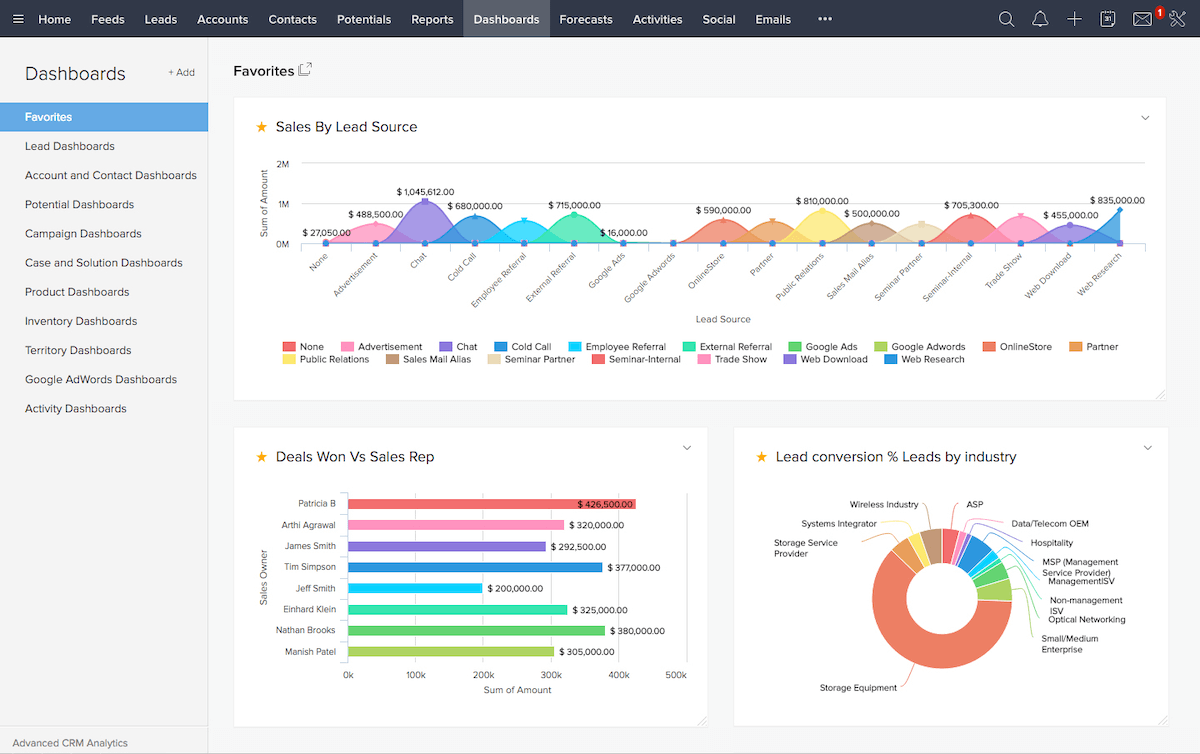
Screenshot of Zoho CRM dashboard.

Image credit: Discover CRM

Zoho CRM is a cloud-based platform that helps your business convert leads and engage with customers. The CRM software simplifies workflows by centralizing: 

  • Sales. 
  • Marketing. 
  • Customer support. 

Additionally, Zoho CRM enhances operational efficiency with: 

  • The Zoho apps suite. 
  • Multichannel communication.
  • Third-party integrations with Slack, Shopify, and more.

Is Zoho free to use?

Now that you know more about Zoho CRM, let’s answer the big question: is Zoho free to use? 

Yes, Zoho CRM offers a freemium version! This plan affords free access to basic features and lets you manage workflows without any bills. 

You can also integrate Zoho’s freemium model with your: 

  • Social media accounts. 
  • Event calendars. 
  • Sales tasks. 
  • Notes. 
  • Call logs. 

And it doesn’t just stop there. Zoho also has a trial period for all editions, which grants unrestricted access for a limited time. 

While Zoho doesn’t require upfront costs for sign-up, it’s important to note that fees will apply after a certain period. 

But what exactly do you get with Zoho’s free CRM?

What will you get in the Zoho free version?

Still wondering, “Is Zoho free to use?” If so, you’re probably eager to know about the features included in the free version. 

Whether you’re at your desk or on the move, Zoho’s free CRM caters to the dynamic needs of sales reps and other professionals.

Contact book

Zoho’s free CRM makes managing your company contacts a breeze. It comes with a user-friendly contact book that organizes your:

  • Customers.
  • Contacts.
  • Leads.
  • Deals.
  • Accounts.

However, it’s important to note that Zoho contact book has its limitations, particularly with its lack of custom fields. This could be a significant drawback if you need to store specific contact information. 

Email marketing

Zoho’s free CRM gives you limited tools to craft custom emails. Zoho also permits you to: 

  • Set up email templates. 
  • Access built-in formatting options. 
  • Use data import/export capabilities. 
  • Create custom email marketing workflows. 

Lead generation

Need to generate leads? Zoho’s free CRM has your back. It simplifies lead management by helping you: 

  • Find and connect with leads online. 
  • Track visitors using SalesIQ. 
  • Creating leads with web forms. 

Automation

Zoho simplifies your workload by automating custom workflows in just a few clicks. 

Imagine effortlessly sorting emails and organizing information. Zoho takes care of these routine tasks and lets you focus on the bigger picture! 

However, the free version of Zoho has limited automation capabilities, and users may find it challenging to trigger workflows. 

Analytics and reporting

With Zoho’s analytics and reporting capabilities, you can examine your information using: 

  • Basic reporting and dashboards. 
  • Sales forecasts. 
  • Insightful charts. 

Plus, Zoho lets you segment customers for better-targeted strategies. 

While Zoho’s analytics are comprehensive, fully leveraging its capabilities often requires training and practice. This might be a challenge for users lacking technical expertise or dedicated analytics teams.

Customization

Zoho CRM faces certain customization constraints, such as limits on the number and size of custom fields.

Despite these limitations, Zoho’s free CRM still offers a great deal of adaptability.

For example, you can create custom list views and even access branding in the free version, making it uniquely yours. 

Storage

With Zoho’s web-based CRM, everything is securely stored in the cloud. This includes:

  • Data storage: Easily store your records in customizable modules. 
  • File storage: Create, share, and evaluate files with other users.

However, Zoho’s free version has storage limitations, allowing only up to 10 MB of storage capacity.

So, is Zoho free to use? Absolutely. It supplies a variety of powerful tools at no cost. But, the free version is not without its limitations.

Zoho CRM plans and pricing

In addition to the question, “Is Zoho free to use?” you may want to explore the complete range of Zoho’s plans and pricing.

Zoho comes with a subscription model that has tiered pricing based on features. Plus, each plan includes access to customer service and essential security features.

Here’s a detailed look at Zoho’s CRM plans and pricing: 

Free plan

Zoho’s free plan provides free access to basic features. It’s perfect for small businesses that want a simple CRM at no cost. It offers essential CRM functions like: 

  • Standard reporting. 
  • Basic collaboration tools. 
  • Licenses for up to 50 emails per user. 
  • Contact, leads, and workflow management. 
  • Task and project management (in select free versions). 

Unlike a standard CRM that includes ads in the free version, Zoho CRM provides an ad-free interface. 

However, it’s important to note the limited features of Zoho’s free plan: 

  • Limited API calls: The plan only approves a certain number of external applications or services. This is particularly a constraint if you rely on third-party integrations.
  • User restrictions: The plan limits the number of users in the free tier, making it more suitable for smaller teams or individual users. If you need a system that authorizes multiple users, you’ll have to go more premium.
  • Email templates: While you have access to ten templates, this limitation might require more manual customization for your email campaigns.
  • Data storage: With just 10 MB of storage, you’ll need to be mindful of managing your data efficiently.

Standard plan

Priced at $14 per user each month, Zoho’s Standard plan furnishes businesses with the tools they need to simplify workflows. It values simplicity and caters to the demands of modern sales management.

The Standard plan includes: 

  • Mass emailing.
  • Sales forecasting.
  • Multiple pipelines.
  • Lead scoring rules.
  • Automated workflows.

Plus, the Standard plan includes additional features such as: 

  • Add-on availability. 
  • 100 email templates.
  • 200 MB of data storage.
  • 300 emails per user license.
  • Up to 100 custom reports and 10 dashboards.

Professional plan

Priced at $23 per user each month, the Professional plan entitles businesses to a suite of elevated CRM features, including:

  • Upgrade options. 
  • Web-to-case forms. 
  • Extensive customization. 
  • Blueprints and inventory management. 
  • Validation rules and real-time notifications. 

In terms of data management, the plan offers:

  • An analytics mobile app. 
  • 5 GB of data storage.
  • Unlimited reports.
  • Ten custom dashboards.

Enterprise plan

At $40 per user each month, Zoho CRM’s Enterprise plan is ideal for large companies looking for advanced CRM features and customization. As the most popular choice, it includes:

  • Data encryption. 
  • Advanced dashboards. 
  • Personalized customer journeys. 
  • ZIA — an AI-powered sales assistant.
  • Collaboration portals for external stakeholders. 

The Enterprise plan also provides greater capacity with: 

  • 10 GB of data storage.
  • Unlimited email templates.
  • Unlimited reports and dashboards. 

Ultimate plan

Priced at $52 per user each month, the Ultimate plan is Zoho CRM’s largest offering. It grants access to everything in the Enterprise plan, plus: 

  • Additional reporting.
  • Extended features.
  • Advanced ZIA capabilities.
  • Extensive customization options.

This plan is ideal for large businesses that want top-tier CRM functionality without worrying about hidden charges or rates.

So, is Zoho free to use? Yes, but that might not be your best option 

Zoho free vs. paid: what is the difference?

When asking, “Is Zoho free to use?” it’s key to know the differences between Zoho’s free and paid versions.

Zoho’s free CRM is great for small businesses, as it allows limited usage without cost. It focuses on essential CRM activities, such as:

  • Managing leads.
  • Handling contacts.
  • Overseeing deals.

However, it does come with user and record limitations. 

In contrast, the paid version is great for those who need more. It requires payment for advanced functionalities that include: 

  • Workflow automation. 
  • Detailed analytics. 
  • Greater customization. 

Ideal for growing businesses, the paid version supports a larger number of employees and records and offers a complete set of CRM tools. 

Plus, it includes in-app purchases for added features.

Zoho’s paid CRM upgrades to premium after the trial ends, but offers discounts for annual commitments.

To sum up, the free version of Zoho CRM is ideal for small teams, while growing businesses benefit more from the feature-rich paid version.

The best Zoho alternative for QuickBooks and Xero users

Method is the #1 CRM for QuickBooks and Xero users. Its native, two-way sync with these platforms provides a significant advantage over Zoho, particularly for businesses that prioritize financial management in their CRM processes. 

With its web and mobile app availability, you can track leads in real time from anywhere. You also get a suite of automation tools that rival other sales and marketing automation platforms like Zoho. 

What’s more is that the solution scales with your business, which makes it a top choice for businesses of all sizes. 

Frequently asked questions (FAQs)

Is Zoho cheaper than Google?

A cost comparison between Zoho and Google is tricky, as they both offer a range of products and services at various prices.

Zoho focuses on specific business tools like CRM, while Google provides a broader range of software like Google Workspace. Pricing depends on your unique business processes and needs. 

Who is Zoho CRM best for?

Zoho CRM is ideal for businesses across various fields, from small startups to large organizations. However, many businesses quickly outgrow Zoho’s less expensive plans and end up paying more than they budgeted.

Can Zoho be used offline?

Yes, Zoho offers offline access. Several Zoho apps provide enhanced mobile accessibility, which lets users perform tasks without an internet connection. For example, if you modify something offline, your changes automatically sync once you reconnect. 

However, the extent of offline access varies between different Zoho applications and may depend on your specific plan or subscription level.

Unlock seamless customer relationship management with Method. Start your free trial today.

Image credit: Yan Krukau via Pexels 

Photo of freelancer business, woman pondering on searching of way of development of her corporation sitting before laptop using internet

HubSpot vs. Salesforce: Is HubSpot better than Salesforce?

Is HubSpot better than Salesforce? Here we compare and evaluate both CRMs to help you determine what works best for your business.

HubSpot vs. Salesforce: Is HubSpot better than Salesforce? Read More »

Losing track of customer relationships is like leaving money on the table. This is where a customer relationship management (CRM) system comes into play.

Whether you’re a startup looking to scale or an established business aiming to optimize customer engagement, the right CRM matches your operations for sustained growth. 

This blog compares and evaluates industry leaders HubSpot and Salesforce to help you discover the solution that aligns best with your business needs.

By the end of this blog, you’ll be able to answer the question, “Is HubSpot better than Salesforce?” for yourself. 

Let’s dive in!

What is HubSpot?

Initially launched in 2005 as a marketing resource, HubSpot now operates as cloud-based CRM software. It has evolved into a powerful system supporting sales, marketing, and customer service operations with an integrated content management system. 

Its CRM stores all contacts and leads, which users can access through a shared portal. This makes it ideal for teams coordinating sales and marketing efforts. 

Users love HubSpot for its “hubs” that you can choose from to build your own custom plan. Small businesses typically bundle hubs together for an all-in-one solution, but you can pick which ones to subscribe to so that you only pay for what you need.

What is Salesforce?

Salesforce competes as a leading CRM that optimizes customer relationship management in several ways. As one of the pioneers in offering cloud vs. on-premise solutions, it is among the most popular business software solutions. 

The platform offers standout solutions to manage customer interactions across sales, marketing, and customer service operations. It offers:

  • AI capabilities for predictive sales analysis.
  • Mobile and web-based functionality for sales teams on the go.
  • Integration options for Gmail, Outlook, and other apps.

Salesforce’s cloud-based nature ensures accessibility and real-time data management. It also features an extensive AppExchange marketplace for additional integrations and capabilities. 

Not to mention, through advanced tools and analytics, Salesforce streamlines sales processes more effectively than most.

Strengthen your operations and customer experience with Method. Get free demo.

Is HubSpot better than Salesforce?

So as the title of this blog asks: is HubSpot better than Salesforce? The answer is… it depends.

Answering, “Is HubSpot better than Salesforce?” depends on your specific needs. On the one hand, HubSpot:

  • Has a more user-friendly interface.
  • Offers inbound marketing tools.
  • Is great for small-to-midsize businesses or those new to CRM software products.
  • Offers a cost-effective solution with a free CRM option as well.  

In contrast, Salesforce offers scalability for large enterprises that require advanced customization capabilities and scalability. It goes above and beyond in terms of sales features and detailed data analytics, which makes it suitable for complex CRM needs. 

As an industry titan, Salesforce also boasts comprehensive support resources and plenty of bells and whistles.

Ultimately, your decision depends on factors like:

  • Business size.
  • Budget.
  • CRM complexity.
  • Whether your focus is on sales or marketing. 

HubSpot vs. Salesforce: Detailed comparison

HubSpot and Salesforce stand out as two leading platforms, each with its unique strengths and target audiences. But is HubSpot better than Salesforce for your business, or vice versa?

Salesforce is popular for its adaptability to complex sales processes and advanced reporting and analytics features. It caters to the complex needs of large enterprises with its scalability and customizability. 

It’s also able to handle intricate sales automation, as it offers various tools and features to meet large-scale demands​​​​​​. Overall, Salesforce is more adaptable to specific industries and supports a wider range of integrations. 

HubSpot, on the other hand, has an interface that prioritizes ease of use and offers more affordable pricing options when compared to Salesforce. It also provides advanced marketing automation features that make it ideal for growing companies. 

HubSpot’s approach is more focused on integrating marketing and sales tools in a user-friendly manner. It offers free solutions that are great for smaller businesses​​​​​​.

Both apps are renowned across a lot of industries for their impressive features and functionalities. Whether it’s to organize projects or manage customer relationships, both HubSpot and Salesforce are effective solutions. 

But to really answer the question, “Is HubSpot better than Salesforce?” let’s look into their benefits. 

Benefits of Salesforce vs. HubSpot

The benefits you get from Salesforce include:

  • App creation that requires less customization out of the box. 
  • Powerful analytics capability. 
  • Integrated customer support and resources. 
  • Optimized workflows. 
  • Fast lead scoring. 
  • Efficient email tracking and management.

HubSpot also provides several advantages:

  • A user-friendly interface and scalability.
  • Powerful marketing campaign creation and tracking.
  • Supports a wide range of integrations. 
  • Effective contact and data management tools. 
  • SEO advisor feature. 
  • Integration with various tools, including social media integration.

CRM pricing

Salesforce pricing

Salesforce determines its price for customers based on market demand, which reflects its position as a high-value provider. 

That said, it has a more transparent pricing structure and is available in the following pricing models:

  • Essentials: $25 per user per month. 
  • Professional: $80 per user per month.
  • Lightning Enterprise: $165 per user per month.

HubSpot pricing

HubSpot differentiates with unique add-ons. It determines your cost depending on how you’ve separated and purchased its individual bundles or “hubs.” This depends on how many business tools you need. 

A word of advice: it’s best to review how much the CRM costs with add-ons included, as the final cost quickly adds up. This sometimes outweighs the value of the features you’re getting. 

HubSpot’s Starter plan begins at $20 per month, but its Professional plan jumps to $1600 per month. For more information, you can check out HubSpot’s website to get an exact estimate for your business. 

CRM services

Salesforce provides a diverse range of services focusing on customer relationship management (CRM) and beyond. Here’s an overview of its key services:

  • Sales Cloud.
  • Service Cloud.
  • Marketing Cloud. 
  • Analytics Cloud. 
  • AppExchange. 

HubSpot offers a suite of services designed to enhance business operations in marketing, sales, customer service, and website management.

These include its:

  • CRM platform.
  • Marketing hub.
  • CMS hub. 
  • Services hub. 
  • Operations hub.
  • Integrations. 

CRM tech support

Salesforce provides extensive technical support to ensure the effective use of its services. Key features include: 

  • 24/7 support availability.
  • Tiered support levels for different needs.
  • An online knowledge base with user guides and FAQs. 

Additionally, Salesforce offers community forums for user collaboration and case submission for issue tracking. 

For developers, specialized support is available for custom app development. Salesforce also offers a Premier Success Plan with enhanced services like 24/7 phone support and faster response times.

In comparison, HubSpot provides reliable technical support to ensure smooth operation. Key features include:

  • A comprehensive online knowledge base.
  • User forums for peer-to-peer assistance.
  • Direct support options via emails, phone, or chat. 

HubSpot also offers detailed documentation and FAQs for self-guided problem-solving. 

CRM training

Salesforce offers plenty of training resources through Trailhead. It’s a free online learning platform that features gamified educational modules and paths to get comfortable with the interface and functionality. 

Salesforce also delivers training through webinars and interactive workshops for practical learning. If required, it even tailors training solutions for you to address your specific needs.

HubSpot’s training and onboarding process centers around the HubSpot Academy. It’s an online platform that offers courses, certifications, and training videos on topics that range from CRM basics to advanced marketing strategies. 

You also get detailed user guides and documentation that simplifies self-guided learning. Note that HubSpot has a shorter learning curve than Salesforce in general. 

Also, HubSpot frequently hosts webinars and live training sessions, which cover a wide range of functionalities and best practices. It even organizes in-person training events and conferences, with opportunities for learning from experts and industry leaders. Overall, HubSpot boasts a larger community for support. 

User experience

HubSpot prioritizes an accessible user interface and experience, which makes it more adaptable for a small company. 

Salesforce, with its advanced CRM capabilities, suits those looking for comprehensive features. However, it requires more customization out of the box.

Content management capabilities

Salesforce includes powerful content management through its Salesforce CMS. For example, it lets you create and manage content in a unified space. It also enhances collaboration across teams with its communication tools. 

It’s particularly strong for creating personalized customer experiences, and it also integrates seamlessly with other tools.

HubSpot’s CMS Hub, on the other hand, is designed for marketers and non-technical users. It offers features like:

  • Intuitive drag-and-drop editors.
  • SEO recommendations.
  • Adaptive testing. 
  • All-in-one integration.

In a nutshell, HubSpot creates optimized web experiences and delivers more comprehensive marketing tools than its alternatives.

Contact management solutions

Is HubSpot better than Salesforce when it comes to contact management? 

Both solutions have great contact management capabilities. Salesforce gives you a detailed view of your customer interactions. It scales and adapts to your needs, which makes it ideal for sales pipeline management for larger businesses with complex sales processes. It also offers extensive customization for tracking customer data and interactions.

What differentiates HubSpot is that it offers a more user-friendly interface for contact management. As a result, it’s more accessible to smaller businesses or those with simpler sales cycles. 

It also excels in organizing and tracking contacts as part of its inbound marketing approach, with easy integration with its marketing, sales, and service hubs.

Customization

Salesforce offers a high level of customizability, so you can tailor your CRM to meet specific needs. This includes:

  • Custom fields and layouts.
  • Automated workflows.
  • Integration with third-party applications. 

HubSpot offers customization options, but it specializes in delivering simplicity. It provides custom fields and pipeline stages that especially help small to medium businesses (SMBs). In a way, a HubSpot user customizes the platform before they even use it by selecting specific hubs.

Integration capabilities

Salesforce’s API and developer support and AppExchange marketplace enable integration with a variety of third-party applications. From marketing automation tools like Marketo to financial software like QuickBooks or Xero, you can connect to your existing tools with ease.

HubSpot offers a strong suite of native integrations, along with a growing ecosystem and app marketplace. Its integrations are particularly strong when it comes to marketing tools that enhance its capabilities in inbound marketing and content management. You can expect seamless integration with platforms like Mailchimp, Google Workspace, and Zapier. 

Analytics and reporting

Salesforce provides comprehensive analytics and reporting features, including customizable dashboards and reports. Its advanced analytics capabilities, powered by AI (Einstein Analytics), offer deep insights into business operations and customer interactions.

HubSpot also offers powerful analytics and reporting tools and features more intuitive dashboards with the ability to track:

  • Marketing.
  • Sales.
  • Service metrics — and more. 

It stands out in providing insights into customer journeys and marketing effectiveness.

Sales and pipeline management

Salesforce’s Sales Cloud does a great job of managing sales processes and pipelines.  If you have complex sales processes, it’s ideal for you. It offers detailed:

  • Pipeline management tools.
  • Forecasting.
  • Lead scoring. 

Not to mention, it excels in automation capabilities to save you time.

Is HubSpot better than Salesforce for sales pipeline management? The truth is, it depends on your business. HubSpot’s sales and pipeline management tools are less robust, but easier for smaller sales teams to adopt. It provides features like:

  • Email marketing.
  • Deal stages.
  • Pipeline visualization. 

This makes HubSpot ideal if you need a straightforward sales management solution.

Limitations

Salesforce

  • Higher price point compared to other CRM software.
  • There is a learning curve and complex interface that may not be suitable for all users.
  • Users have reported performance issues, particularly with loading times and system responsiveness.

HubSpot

  • Reviews cite limited templates for certain marketing campaigns.
  • Advanced reporting features are available only in higher-tier plans.
  • Limited specialization for different industries.

The best option for QuickBooks and Xero users — Method

Method stands out as the most ideal solution for QuickBooks and Xero users. With its two-way sync, you enjoy real-time updates between your accounting data and CRM operations for unified and efficient workflow automation. 

Method addresses and surpasses the limitations of other software options. It outperforms competitors, because it:

  • Offers a cost-effective solution, which caters better to small businesses. 
  • Features customizable workflows to tailor the entire solution for your needs. 
  • Provides superior customer support, which suits those with limited tech expertise.
  • Has an intuitive design that requires less training time compared to more complex interfaces.
  • Automates repetitive tasks to reduce your stress. 
  • Offers more extensive training resources for smooth implementation. 

Method also offers a more extensive free trial and updates its features more frequently than alternatives. With this software, you gain back control of your business. 

Is HubSpot better than Salesforce FAQs

Who is bigger: HubSpot or Salesforce?

Salesforce is more established in the CRM industry and has a broader global presence in terms of market share and revenue. It also supports a broader range of industries and business sizes. With its large user base, it also has more positive user reviews and ranks highly among its competitors. 

Its scale also means that it provides a more flexible API and ensures data security more robustly. Despite these advantages, you should still ask, “Is HubSpot better than Salesforce for my business specifically?”

Who is HubSpot best for?

HubSpot fulfills the needs of small-to-medium-sized businesses and those new to CRM systems. It focuses more on inbound marketing strategies, which addresses the needs of e-commerce businesses better than alternatives. The software is perfect for those seeking an intuitive, user-friendly CRM solution.

Is Salesforce a good CRM?

Yes, Salesforce is a highly effective CRM, known for its:

  • Customization options.
  • Scalability for growth.
  • Comprehensive suite of features. 

However, it scales more efficiently for large enterprises with complex CRM needs — meaning it might not be the best bet for smaller organizations.

Are Salesforce and HubSpot good CRMs for real estate?

Both Salesforce and HubSpot are effective CRMs for the real estate industry. But is HubSpot better than Salesforce when it comes to this domain? 

Salesforce serves industries with large-scale business needs, as it is more customizable for unique workflows.

HubSpot contrasts this, in that it’s an easier-to-use platform. It’s ideal for smaller real estate businesses that focus on digital marketing and lead generation and management.

Save hard costs and real time. Start your free trial with Method.

Image credit: deagreez via Adobe Stock

Woman with orange headphones works on laptop in front of window

Is QuickBooks Enterprise cloud-based? All you need to know

Is QuickBooks Enterprise cloud-based? Get all the details on this platform, including multi-user support and mobile access.

Is QuickBooks Enterprise cloud-based? All you need to know Read More »

QuickBooks Desktop Enterprise is a robust business management software that simplifies the way you handle accounting, inventory, payroll, and more. But is QuickBooks Enterprise cloud-based?

Whether you’re considering a shift to the cloud or want to scale your accounting processes along with your business, keep reading to find the answer.

You’ll also learn more about QuickBooks Enterprise’s:

  • Hosted option availability.
  • Integration with cloud apps.
  • Mobile app access.
  • Multi-user support.
  • Role-based access and permissions.
  • Web connectivity requirements.

Let’s dive in and explore how QuickBooks Enterprise streamlines financial operations!

Running your business takes more than bookkeeping.

What is QuickBooks Enterprise?

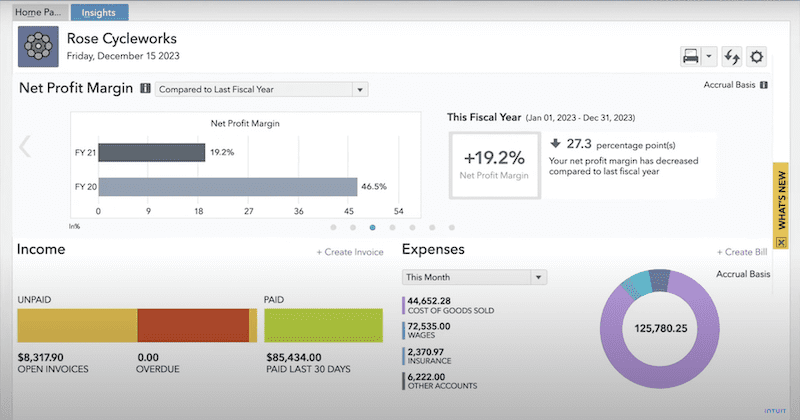
Dashboard of QuickBooks Enterprise

Image credit: Intuit QuickBooks

QuickBooks Enterprise by Intuit is a comprehensive business management solution and accounting software that can handle several operations simultaneously. Because of this, many use the platform as an ERP

It’s an advanced version of QuickBooks made for businesses that need more than what QuickBooks’ Pro or Premier versions offer. 

QuickBooks Enterprise provides a centralized platform for accounting tasks, bookkeeping, inventory management, payroll, and more. It gives you the resources to manage your business’: 

  • Financial reports.
  • Sales.
  • Expenses.
  • Taxes. 

You can use its advanced inventory management features and time tracking capabilities to manage your operations through a single platform.

But, is QuickBooks Enterprise cloud-based? Let’s see.

Is QuickBooks Enterprise cloud-based?

Initially, this tool was a desktop application that only operated on companies’ servers or individual desktop devices. On-premise programs don’t have remote access capabilities, which makes it hard to collaborate and update information in real time.

But is QuickBooks Enterprise cloud-based all these years later? Yes. 

Today, it offers a cloud hosting option that provides remote access. Cloud-based programs don’t need their own servers or data centers to store information. Instead, they can rely on cloud hosting partnerships (e.g., Right Networks).

This means QuickBooks Enterprise’s cloud functionality reduces the need for on-premises hardware and provides remote access from any device.

Benefits of QuickBooks Enterprise with cloud access

Boost productivity

Cloud access to QuickBooks Enterprise enhances workflow efficiency because it:

  • Makes it easier to maintain team member communication.
  • Permits access from various geographic locations. 
  • Lets you share up-to-date information.

An option to increase productivity is QuickBooks Enterprise cloud-based software. Cloud functionality ensures that location constraints don’t affect your workflows, from invoicing to project management. 

Enhanced collaboration with remote accessibility

Cloud access to this platform allows for real-time collaboration between:

  • Team members.
  • Clients.
  • Vendors. 

QuickBooks Enterprise is compatible with various operating systems, so you can add third-party app integrations like messaging software. 

Online payments, automated leads, and customer management?

Cloud access to QuickBooks Enterprise simplifies your processes and ensures everyone is on the same page when you need to:

  • Update a file.
  • Sync or backup data.
  • Retrieve information. 
  • Deploy communications or reports.

It also provides flexibility by letting your team access information anywhere, at any time. With the cloud, all you need is an internet connection.

Easy reporting access

Easy access to reports is crucial when it comes to:

  • Tracking sales.
  • Managing inventory.
  • Handling payroll. 

When hosted on the cloud, QuickBooks Enterprise facilitates access to financial reports and even guarantees data encryption for security. 

The platform also integrates seamlessly with other cloud applications like Microsoft 365. This helps you efficiently manage your: 

  • Budgeting. 
  • Cash flow. 
  • Taxes. 

Finally, QuickBooks Enterprise also enables automatic software updates and ensures data redundancy for disaster recovery to keep your information safe and you in control.

Cost savings

QuickBooks Enterprise offers a subscription-based pricing model that provides various plans and add-ons to suit your business needs. It’s available in Gold, Platinum, and Diamond tiers.

Depending on the license price you pay for cloud access, the platform comes with a number of features, including:

  • Automated backups.
  • Regular cloud updates and upgrades.
  • Training resources.  

This software system also offers scalable storage solutions to ensure you only pay for what you need.

Moreover, it has a scalable infrastructure for growing businesses, which means you won’t need to migrate your data to a more robust system. 

That said, QuickBooks Enterprise facilitates easy data migration both ways and comes with 24/7 customer support to help you, your accountant, and your team have the best possible experience.

How can you host QuickBooks Enterprise on the cloud?

Use Method — the #1 lead-to-cash automation tool for QuickBooks users

Method CRM is an excellent example of how you can connect your QuickBooks Enterprise with cloud technology. It’s the #1 lead-to-cash automation tool for QuickBooks users. Any changes you make to Method will reflect in QuickBooks and vice versa, which means you can update your data from anywhere.

Method also helps you manage your customer relationships, from prospecting to invoicing, so that you turn more leads into customers.

The software can be customized based on business needs to fit your operations, and not the other way around.

Pricing

Method CRM offers a free trial and a range of subscription plans, starting at $27 a month. These plans cater to different business sizes and needs to ensure you get the best value for your investment.

3rd-party QuickBooks Enterprise cloud hosting

There are several third-party cloud hosting providers for QuickBooks Enterprise, like Right Networks. This company specializes in hosting QuickBooks Enterprise on its servers. It offers:

  • Mobile QuickBooks access.
  • Robust security.
  • Cloud-specific support channels. 

Users seek out a third-party service that:

  • Ensures automatic data backups.
  • Makes it easy to keep downtime and uptime records.
  • Identifies internet issues quickly.

Pricing

Different third-party cloud hosting platforms charge different prices, and most have multiple pricing tiers.

Right Networks offers many services and options. Their plan for QuickBooks users starts at $19.50, billed monthly after the free trial ends.

Frequently asked questions

How do I set up multi-user in QuickBooks Enterprise?

QuickBooks Enterprise supports multi-user access simultaneously to let various employees work on the same files at once. 

To set up multi-user in QuickBooks Enterprise:

  1. Go to the “File” menu.
  2. Select “Utilities.”
  3. Click “Host Multi-User Access.”
  4. Confirm your choice on the prompt.

Does QuickBooks Enterprise need a server?

Since the answer to the question “Is QuickBooks Enterprise cloud-based?” is yes, you don’t need your own server to use it. 

You only need a server if you opt for Desktop-only functionality. Otherwise, your data is hosted on secure servers by the provider, which ensures data security and encryption.

What is the difference between QuickBooks and QuickBooks Enterprise?

QuickBooks has many different versions — one of which is QuickBooks Enterprise. Other QuickBooks versions are a better fit for a small business or one that’s just starting out. 

On the other hand, QuickBooks Enterprise is better suited for larger businesses or those that need more complex features like:

  • Advanced inventory management.
  • Detailed tracking.
  • Comprehensive reporting capabilities. 

It’s the last step up for companies scaling their operations with QuickBooks, outside of third-party integrations.

QuickBooks gets you started, Method helps you grow. Start free trial.

Image credit: Christina Morillo via Pexels

Woman with irritated expression studies documents on desk

Is QuickBooks easy to learn? Effective ways to learn QuickBooks

Is QuickBooks easy to learn? Who can use it? Find out here and learn about its features, advantages, and disadvantages.

Is QuickBooks easy to learn? Effective ways to learn QuickBooks Read More »

You’ve probably heard about QuickBooks, as it’s one of the most popular accounting software options. But is QuickBooks easy to learn? 

Whether you’re a beginner or an experienced bookkeeper, you’ll look at why business owners and accountants choose QuickBooks in this blog.

Keep reading to find out:

  • Is QuickBooks easy to learn?
  • The best ways to learn how to use QuickBooks.
  • The benefits and disadvantages of QuickBooks.
  • What functions does QuickBooks have?

Stop spending your day sending emails, estimates, and invoices.

What is QuickBooks?

QuickBooks, developed by Intuit, is an accounting software for businesses of all sizes designed to simplify financial management. That said, small and medium businesses find it especially useful, as it’s budget-friendly and can easily adapt to a growing company.

QuickBooks offers all the basics bookkeepers need, like:

  • Invoicing. 
  • Payroll processing.
  • Expense tracking.
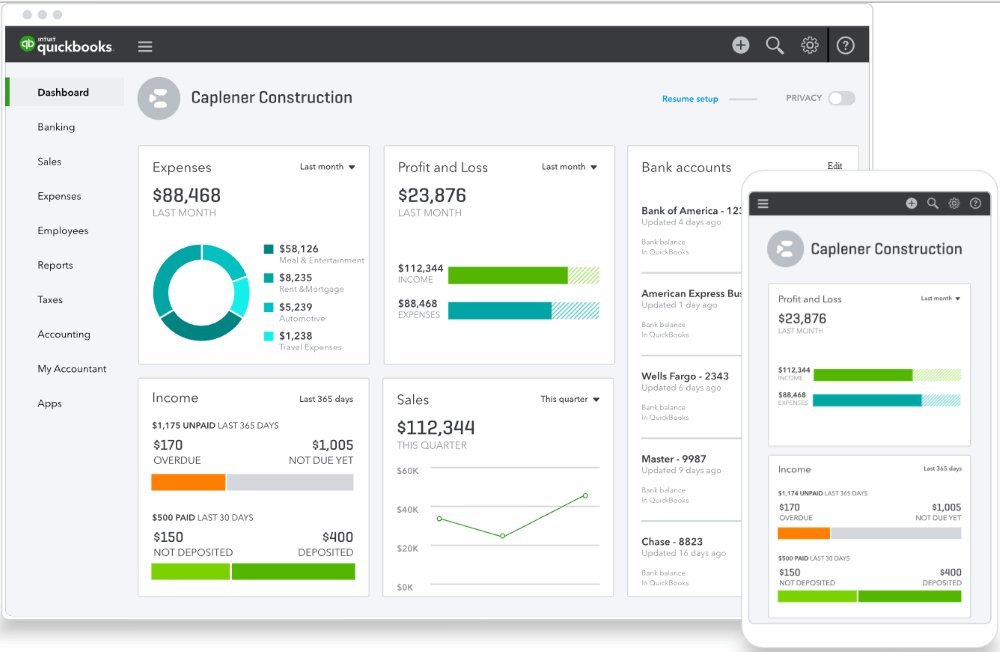
QuickBooks dashboard

Image credit: QuickBooks

The software is available in two main versions: QuickBooks Online and QuickBooks Desktop. 

QuickBooks Online is a cloud-based system that lets you access your data from anywhere through its online functionality and mobile app availability. It has a few subscription plans with different pay scales depending on the level of resources and support your business needs. Examples include but aren’t limited to:

  • QuickBooks Online Simple Start.
  • QuickBooks Online Essentials.
  • QuickBooks Online Plus.
  • QuickBooks Online Advanced.
  • QuickBooks Online Accountant.
  • QuickBooks Self-Employed

As of September 30, 2024, Intuit has stopped selling most versions of QuickBooks Desktop, meaning that the only version currently available to new U.S. subscribers is QuickBooks Enterprise.

QuickBooks Enterprise is designed for companies with more employees. It includes advanced features like intercompany transactions and inventory management. Unlike the Online version, you can only access your information from the system it’s installed on, unless you set up remote access with additional configuration.

Start your free trial of QuickBooks here

Is QuickBooks easy to learn?

The answer to, “Is QuickBooks easy to learn?” depends on your prior experience with bookkeeping software. 

That said, QuickBooks is favored for its ease of use. Users find it is structured for easy comprehension when compared to other bookkeeping software.

QuickBooks is designed for users of all skill levels. This means it can be mastered in a short time, even if you have little knowledge of accounting software. It has a gentle learning curve that makes accounting simpler for beginners. Plus, the platform is intuitive to navigate, which makes it easy to familiarize yourself with its interface.

So, is QuickBooks easy to learn for complete beginners? It is often recommended for newbies because it:

  • Requires minimal training and is complemented by online resources that offer hands-on training events and workshops.
  • Is built with the user in mind and includes contextual help prompts, in-app tooltips, and a guided setup process.
  • Is supported by a large community of users that post a wide range of online resources.
  • Adapts to the user’s needs based on its multiple subscription options.
  • Allows integration with familiar tools (like Excel) and other third-party platforms.

Why should I learn QuickBooks?

QuickBooks greatly simplifies accounting concepts and makes short work of manual bookkeeping tasks. That means you’ll have more time to spend on other value-added tasks. Our research indicates that nearly 80% of small businesses use QuickBooks for this reason.

Because of its user-friendly report generation, QuickBooks helps you comprehend your company’s finances. It gives you quick access to common tasks, such as tracking income and expenses or organizing credit card accounts and payments.

You also get access to pre-designed templates for invoicing and receipts that help your team send professional financial statements to customers. These tools make it easier to assimilate to modern-day business practices and stay ahead of your competitors.

Top ways to effectively learn QuickBooks Online

While QuickBooks’ intuitive user interface lets you jump into the platform without much assistance, additional training courses help you grasp the finer details of the software. 

While the answer to, “is QuickBooks easy to learn?” is no for some, these resources change that.

QuickBooks tutorials

One of the biggest benefits of using QuickBooks is its huge user base whose members frequently post in community forums and user discussions. You can find answers to thousands of questions from experienced user accounts, as well as in free video guides and webinars.

These step-by-step tutorials help you acquire answers to the problems you encounter and discover new ways to apply QuickBooks functions to elevate your business.

QuickBooks Learning Center

QuickBooks Learning Center officially provides comprehensive tutorials to help you study its core features. It includes step-by-step walkthroughs of the software’s core features, which is especially useful for beginners.

Udemy courses

Udemy is a learning resource that offers paid online courses taught by accounting professionals. You can find several comprehensive QuickBooks classes on Udemy that are specially tailored to your current level of expertise. For example, if you’re using QuickBooks Online Advanced Payroll for the first time, you can take a course that helps you set up employee payroll properly. Some instructors even offer sample company files for practice.

QuickBooks trainings

QuickBooks offers a training and certification program for accountants and bookkeepers to become experts in the software. QuickBooks will recognize certified users with a ProAdvisor status. Leveraging this boosts the trust and confidence of the clients in your industry.

What does QuickBooks training cover?

Online invoicing and AR monitoring

Learn to integrate online invoicing and accounts receivable (AR) as part of your regular accounting functions. This lets you track and manage the money moving in and out of your account. Plus, it ensures you keep a digital record for tax purposes.

Bank reconciliation

Explore how to match bank transactions with those recorded in QuickBooks to ensure your company’s financial record accuracy. This process will help you pick up discrepancies while keeping an up-to-date chart of your company’s cash position.

Expense tracking

Knowing how to track and categorize business expenses in QuickBooks helps you maintain accurate records. This simplifies your financial management system so you can easily understand spending patterns and prepare for tax season.

Generating reports

QuickBooks’ detailed reports give you access to:

  • Profit and loss statements.
  • Balance sheets.
  • Cash flow reports. 

This is essential to your business’ performance as it helps you make informed decisions and present financial information to your stakeholders.

Managing payroll and filing taxes

QuickBooks’ training program helps you manage the details of payroll and tax filing. This includes:

  • Setting up payroll.
  • Processing payments.
  • Understanding your tax obligations. 

Accurate business finances help you avoid penalties and file your taxes efficiently.

Tracking expenses

While you might already have a record of your expenses, QuickBooks training helps you understand how to categorize them and how they impact your business’ financial health.

As a result, you can effectively control your budget and set financial goals.

Why should I invest in QuickBooks training?

Many business owners run their companies just fine without any training in QuickBooks. But oftentimes, you want to do better than “fine.” 

QuickBooks training classes help you reach your company’s greater potential by using your accounting tools and integrations more effectively.

By investing in QuickBooks training, you’ll learn the complexities of the software and equip your team with the skills to manage your finances more effectively. As a result, you:

  • Make better-informed decisions.
  • Improve your company finances.
  • Find new ways to automate your data entry.

Running your business takes more than bookkeeping.

Why do some people find QuickBooks hard to learn?

Is QuickBooks hard to learn? While not everyone finds their accounting software intuitive, QuickBooks shouldn’t be too challenging for most people. However, here are some common reasons why users find it difficult.

Requires accounting knowledge

Is QuickBooks easy to learn for non-accountants? While user-friendly, QuickBooks still assumes a certain level of familiarity with accounting principles (but don’t worry — you won’t need to join any accounting firms). 

This can however make the software difficult to digest for those without a background in accounting, as it involves concepts like:

  • Accounts payable and receivable.
  • Invoices and estimates.
  • Sales, revenue, and profit.
  • Creating financial reports.

Steep learning curve

QuickBooks Enterprise has a steeper learning curve than Online due to a larger number of functions. However, QuickBooks has been simplified over the years based on user feedback, with features such as:

  • Direct customer support channels and online information services.
  • Clear navigation menus.
  • A customizable dashboard.
  • Personalized user experience settings.

These changes made navigating basic accounting concepts in QuickBooks much easier. As per our expertise, we would recommend starting with the Essentials or Plus version of QuickBooks Online for:

  • New users of QuickBooks.
  • Self-employed professionals.
  • Small-to-midsize businesses.

QuickBooks Online Essentials and Plus are more affordable than some of the higher tier versions, plus they include all the essential features you’ll need.

That said, Intuit offers clear instructions for tasks and comes with helpful guides to help you absorb the information you need to use its products. This is helpful to users who are less tech-savvy or new to accounting.

Constant updates

QuickBooks consistently introduces regular software updates with new features to improve your user experience. While beneficial, these constant updates do require you to learn continuously. This gets challenging if you’re not regularly using the software.

Key takeaways

QuickBooks is a powerful accounting software for financially managing a business. It boasts various features that help you with everything from invoicing to tax filing. 

QuickBooks is a much more user-friendly platform than other accounting software, especially for those without accounting experience.

So, is QuickBooks easy to learn? It might have more of a learning curve for new bookkeepers, but QuickBooks is beginner-friendly and is easier to jump into than other accounting software on the market.

That said, investing in training greatly improves your ability to manage your business’ finances effectively. Staying updated with its features and knowing how to use them is a great way to keep your company’s finances on track.

If you’re looking for an affordable way to keep your finances accurate and automate your business operations, there is no better combination than QuickBooks and Method

With Method, you can extend the power of QuickBooks by customizing workflows, managing customer relationships, and eliminating repetitive tasks — all in one place. This means less manual data entry, fewer errors, and more time to focus on growing your business.

Leverage features like:

  • 24/7 customer portals.
  • E-signature approvals.
  • Digital form functionality for lead capture.
  • Time tracking tools.
  • Email campaigns with automatic follow-ups.

The best part? Any update you make on one platform is instantly synced with the other, so you get a full view of every lead and customer without compromising your secure financial data. Check out the video below to learn more.

Stop spending your time on endless admin work.

Is QuickBooks easy to learn: Frequently asked questions (FAQs)

Is QuickBooks training free?

Many of QuickBooks’ online training resources are completely free, including their self-paced training and webinar recordings. You can also find YouTube training videos made by third-party experts that offer in-depth tutorials and new ideas to improve your QuickBooks experience. 

For official QuickBooks’ in-person, two-day training, costs start at $800 with an additional $250 for each additional attendee.

Is QuickBooks harder than Excel?

QuickBooks and Excel have different purposes, but their difficulty varies based on your background and how you use them. Excel is a spreadsheet tool for basic data management, while QuickBooks is a specialized accounting software.

Drawing from our experience, if you’re deciding between QuickBooks and Excel for accounting purposes, then QuickBooks has the features you need to do the job correctly and efficiently. Excel lacks the suite of tools you need to manage your finances.

Is QuickBooks beginner-friendly?

The answer to, “Is QuickBooks easy to learn?” is yes. QuickBooks is a beginner-friendly accounting software designed for anyone — from those new to accounting to industry experts. 

It offers user-friendly features and has a straightforward interface that makes it easy for those with little bookkeeping knowledge to jump right in with minimal training.

What are QuickBooks apps?

The QuickBooks app store is a huge collection of third-party integrations that add additional functions to the platform, such as making online payments and project management tools.

For example, Method integrates seamlessly with your QuickBooks account to give you an instant, two-way sync with your customer data. It provides powerful customer relationship management (CRM) and automation tools to your QuickBooks account to manage your team more effectively.

See how you can extend the power of QuickBooks in this free demo!

Image credit: Mikhail Nilov via Pexels

Two men sitting at an office table. One of the men is pointing at a laptop screen displaying the QuickBooks Online dashboard.

Is QuickBooks an ERP system? QuickBooks vs. ERP

Is QuickBooks an ERP system or just an accounting system? Get the answer here and learn if it’s the right solution for you.

Is QuickBooks an ERP system? QuickBooks vs. ERP Read More »

There are several kinds of software systems that automate financial operations. For example, software that is classified as an ERP system takes on the role of managing several business functions at a time.

Many business owners also use QuickBooks and its integrations to manage multiple business operations. It’s a comprehensive financial management solution that many use as a makeshift ERP system.

So, is QuickBooks an ERP system or solely an accounting module? And which one is the right choice for you?

In this blog, you’ll explore where QuickBooks falls under the category of ERP systems. By the end, you’ll not only answer, “Is QuickBooks an ERP system?” You’ll also get a better understanding of what solution your business needs.

Sick of missing invoices and other data in QuickBooks?

What is QuickBooks?

Image credit: QuickBooks Intuit

Before you dive into the “ERP” part of the question, “Is QuickBooks an ERP system?” let’s go over a brief overview of QuickBooks.

Intuit QuickBooks is an accounting software package that helps small and medium-sized businesses manage their finances. This program gives you the ability to:

  • Simplify financial processes.
  • Reduce manual errors.
  • Save time on accounting tasks.
  • Work anywhere with mobile access.

It is known for its user-friendly interface and scalability, which make it suitable for both startups and established enterprises.

QuickBooks carries out the function of several business processes, as it offers tools for:

  • Bookkeeping.
  • Tracking of orders, payments, and bills.
  • Financial reporting.
  • Pricing and invoicing.
  • Payroll integration.
  • Sales, profits, expenses, and revenue loss tracking.

These functionalities are what make QuickBooks among the most popular accounting systems.

Start your free trial of QuickBooks Online here.

What is an ERP?

ERP stands for enterprise resource planning system. It’s a system that handles business processes such as:

  • Project management.
  • Customer relationship management (basic CRM features).
  • Supply chain modules — including e-commerce and retail, manufacturing, inventory control, products and services procurement, etc.
  • Human resources (HR).
  • Financial reports.

A program is considered an ERP system when it automates workflows and centralizes data from several departments into one platform.

In some aspects, an ERP assumes the position of several team members at a time to help you gain control over every business process. 

So, is QuickBooks an ERP system? The answer depends on how you use it.

Who needs an ERP system?

ERP systems best suit businesses that need a comprehensive solution to centralize processes and information. This includes functions like: 

  • Multidimensional reporting.
  • CRM features.
  • Human resource management. 

Our investigation demonstrated that large, enterprise-size businesses or those managing complex operations over multiple locations benefit the most from an ERP system.

This doesn’t include small-to-midsize businesses, as they typically do not require the advanced features and complexity that ERP systems offer.

Is QuickBooks considered an ERP system?

For most companies, QuickBooks plays the role of an accounting system. However, thanks to its app ecosystem, you can leverage the software as an ERP system in many ways as well.

So, is QuickBooks an ERP system in any way? Even though it’s primarily focused on basic accounting functions, there is overlap with ERP software:

  • Invoicing and billing capabilities with multi-currency support.
  • Tax management and advanced reporting.
  • Cloud-based and desktop versions.
  • Expense management.
  • Automated data sync with banks.
  • Mobile application availability.
  • A simple dashboard and reporting with cash flow insights.

In this way, QuickBooks serves as a cost-effective ERP alternative.

Average cost inventory

QuickBooks automatically calculates the average cost of your inventory, using the amounts you bought your items or articles for. This feature offers valuable insights into your product costs.

For businesses dealing with fluctuating inventory values, QuickBooks is a viable solution that’s comparable to an ERP.

Negative inventory

QuickBooks works as your guide to prevent inventory discrepancies. It alerts you when your stock levels drop below zero so you can make informed decisions and focus on the right things.

The numerous benefits of working with a program that is recognized as an ERP system are not limited to accurate record-keeping. QuickBooks acts as a safeguard against potential profit leaks and helps you keep customers happy by always ensuring you can meet demand.

General ledger and sub-ledger

QuickBooks functions like an accountant by recording every financial transaction that involves your business. Then, it operates as a bookkeeping system by organizing your financial data into helpful reports.

The general ledger in QuickBooks acts as the backbone of your financial story, while the sub-ledger serves as a tool to analyze data thoroughly. In this sense, QuickBooks is comparable to ERP software because of its advanced financial capabilities.

Cash or accrual

QuickBooks adapts to your preferred accounting method, which represents the software’s flexibility.

The platform operates like a user-friendly ERP, whether companies choose:

  • Cash: where transactions are recorded when money changes hands.
  • Accrual: where transactions are recorded when they’re incurred.

QuickBooks is acknowledged to be an ERP system because it acts like a bridge between different financial approaches and business operations.

With QuickBooks, the choice between cash and accrual is very simple. You just have to pick an option in the settings.

Overall, QuickBooks is identified as an ERP system because it provides the depth of features found in an enterprise-level tool. Along with third-party apps, it manages your inventory number, teams, and customers all at once. 

QuickBooks vs. ERP — Is ERP a better choice?

So… is QuickBooks an ERP system but cheaper? Or is ERP implementation actually worth it?

The main difference between using QuickBooks and an ERP as an all-in-one software is in the details of how they’re built.

A program that is generally accepted as an ERP system hosts all its functionalities and modules in the same software.

QuickBooks, on the other hand, has the option of third-party application integrations. It is understood to be an ERP system because it performs the same functions as an all-in-one program with these integrations. For example, it can handle:

  • Time tracking.
  • Project management (basic) with user access controls.

Basic inventory control.So, QuickBooks is labeled as an ERP system by some because it can fulfill just about every one of your business requirements in a single platform.

When integrated with these apps, your accounting softwaretakes the form of:

  • A customer relationship management system (CRM).
  • An HR platform.
  • A field service management system.
  • An order management program — and more.

For example, QuickBooks has limited supply chain functions. But, when integrated with apps like Transaction Pro or SOS Inventory, it also acts in the capacity of a purchase order management system.

QuickBooks ERP: Key differences and features

While QuickBooks does have some cross-over with ERP functionality, it isn’t on the same level as a full ERP system. Even with integrations, QuickBooks focuses on accounting and bookkeeping, while ERP systems offer a broad range of features.

ERP systems not only include accounting capabilities, but also:

  • Features to control risk management and compliance.
  • Advanced inventory management.
  • Supply chain management.
  • Staff and customer collaboration tools.

As the scope of features is much wider, you’ll find the monthly cost is significantly higher for ERP systems. This is also the case for the user-friendliness of the software. Many ERP software solutions like NetSuite don’t even advertise pricing tiers and must be contacted to custom-build a package solution for your company.

QuickBooks is designed to be quick to learn and simple to navigate. ERP platforms are more complex and require additional time to pick up and integrate into your systems before you can begin to use them.

QuickBooks Enterprise has the most overlap when asking, “Is QuickBooks an ERP system?” as it includes many ERP features and a similar pricing model.

Why QuickBooks is better for your business

If you’re a small-to-large business looking for a straightforward accounting solution, then QuickBooks is your better choice. It’s affordable, easy to use, and prioritizes the standard features you use every day.

Because QuickBooks has a large app marketplace, you still have the option to integrate with third-party apps that can fill in any gaps when using QuickBooks on its own.

In addition to its integration flexibility, QuickBooks also offers tiered plans that scale with growing businesses. QuickBooks Enterprise adds advanced features for businesses with complex needs, such as those found in:

  • Retail.
  • Manufacturing.
  • Wholesale industries.

As a scalable solution, QuickBooks is a great choice for businesses that just want to pay for the features they need, when they need them. As such, you should consider how is QuickBooks an ERP system alternative.

Online payments, automated leads, and customer management?

Limitations of QuickBooks

Despite its strengths, QuickBooks also has limitations. It lacks the extensive integration capabilities of ERP systems, especially in areas like:

  • Supply chain management.
  • Advanced analytics.
  • Complex resource planning.

As businesses grow, they often have a wide range of business processes that become more complicated. In this case, QuickBooks may no longer be enough.

Why ERP might be better for your business

If your company has a large number of employees (in the thousands) or has complex business processes, an ERP might be the better choice for you.

Because ERP platforms are end-to-end business solutions, their variety of advanced features touch on every part of your company to help centralize your information and keep complex processes organized.

This also makes reports more accurate as it’s easier to pull information from a single system.

While QuickBooks has the option to add third-party integrations, this adds up in price if you need many. At a certain point, it makes more sense to use an ERP that offers a more tailored approach to your business requirements.

If these functions are useful to you, then the extra time spent training your employees to use the software will be well worth it.

Limitations of ERP software

As mentioned above, ERP software gets quite pricey and can have an additional cost of thousands of dollars per year. Implementation can incur additional fees, and most ERP software does not offer a free trial. This means you’re really committing when you choose one.

This expense can be difficult to swallow for smaller businesses with a lower budget.

Additionally, ERP software is less user-friendly and requires extensive training before you can use it. That means you need to account for the time spent learning to use the platform before it can be an effective part of your company.

Is there a right time to migrate from QuickBooks to ERP software?

If your sole business system is QuickBooks, an ERP system would benefit you. But that doesn’t mean you have to break the bank. Instead, you can design your own all-in-one system by expanding QuickBooks’ capabilities with its app ecosystem.

Although QuickBooks is characterized as an ERP system, it is not natively suited for large enterprises, such as multinational consumer goods or oil companies. That said, the robust ERP program that these enterprises use typically has limited customizability and steep price points.

QuickBooks, on the other hand, is very useful for companies in all kinds of industries, such as:

  • Construction.
  • Field services.
  • Wholesale and distribution.
  • Food and beverage.

It has options for businesses of all sizes and helps drive profitability at scale. For example, QuickBooks Enterprise is defined as an ERP system that satisfies the needs of larger businesses and provides support for multiple users and accounts. Conversely, QuickBooks Simple Start only behaves as an accounting system.

Alternatives to ERPs: Solutions that integrate with QuickBooks

You might look at ERP software solutions and realize you aren’t ready to migrate to a solution that is described as an ERP system for large enterprises.

In this case, a great alternative is to integrate QuickBooks with other tools. Is QuickBooks an ERP system on its own? No, but with its great functionality and annual subscription-based pricing, it can get you started.

Remember that QuickBooks’ third-party apps are why it is viewed as an ERP system. Enter Method and its powerful, two-way sync with QuickBooks.

Method is the #1 lead-to-cash automation tool for QuickBooks users. It turns leads into customers by helping you capture every sales opportunity. It also gives you automation tools that save you time on manual processes and avoid duplicate data entry.

So, while some disagree over the question, “Is QuickBooks an ERP system?” the bottom line is that it helps you grow your business and turn a profit — especially when integrated with the right tools.

Method helps QuickBooks run better​​

Method empowers your QuickBooks account by adding: 

  • Powerful CRM features.
  • Personalized workflows.
  • A real-time data sync that keeps your information up to date.

From core accounting functions to sales and marketing workflows, Method impacts your whole company by giving you the tools to collaborate and drive actionable insights.

Detailed reports help your team make informed decisions and represent financial data accurately. By automating your workflows, you’ll notice fewer errors and more time to spend on tasks that really matter.

With a tiered pricing structure and add-on packages with features per industry type, it’s easy to customize your solution and pay only for the key features you need.

Final considerations when choosing between QuickBooks and ERP

When deciding between QuickBooks and an ERP, consider your: 

  • Business size.
  • Complexity of business activities.
  • Specific needs. 
  • Business growth strategy.

So, is QuickBooks an ERP system? QuickBooks suits smaller businesses seeking simplicity and cost-effectiveness. In contrast, ERPs are better for larger, more complex operations that require an integrated business management solution. Evaluate your current and future needs to make an informed decision that makes sense for you.

If you have a large company with complex business needs, then an ERP software platform might be the better choice. You can cater extensive customization and implementation options your specific requirements.

That said, keep in mind that QuickBooks is the better fit if you’re looking for a simple, cost-effective solution that meets your basic accounting needs and offers some ERP functionalities.

QuickBooks has the flexibility of being able to integrate with a wide range of external software systems, like Method, so you can further customize your accounting processes, sales, and customer management solutions.

QuickBooks ERP FAQs

What is the meaning of ERP in QuickBooks?

You can effectively use QuickBooks as an ERP when you integrate it with solutions from its app ecosystem. Third-party apps enhance QuickBooks’ capabilities with inventory management and CRM features.

Is QuickBooks Online an ERP system?

The answer to the question, “Is QuickBooks an ERP system?” is that it can be. When integrated with third-party apps, QuickBooks Desktop Enterprise and QuickBooks Online Enterprise versions have similar features and benefits.

The standard version of QuickBooks Online is not an ERP system. However, it does also have a lot of crossover functions with ERP software.

What is an ERP system examples?

Examples of ERPs include SAP, Oracle, and Microsoft Dynamics.

Does QuickBooks integrate with ERPs?

Yes, QuickBooks is able to integrate with some ERP platforms. Some ERPs are available through their official integration platform, the QuickBooks app store. Others might require external software systems to connect the two.

What are the benefits of integrating ERP systems with QuickBooks?

Integrating ERP systems with QuickBooks makes businesses more efficient. It:

  • Simplifies processes.
  • Reduces errors.
  • Sets the stage for business success.

Enterprise resource planning software often provides access to APIs that let you integrate with other platforms to further expand the power of your ERP system.

What is QuickBooks Enterprise?

QuickBooks Enterprise is a version of QuickBooks that gives you ERP capabilities. It includes:

  • Advanced inventory management.
  • Tools for manufacturing and wholesale.
  • Industry editions with specific features like mobile barcode scanning or assisted payroll.

When asking, “Is QuickBooks an ERP system?” Enterprise comes the closest.

Do small businesses need an ERP system?

Small businesses typically do not need an ERP system. The standard version of QuickBooks Online Advanced provides core business processes for the majority of small and medium-sized companies.

Kickstart your QuickBooks ERP journey with Method CRM. Start your free trial!

Image credit: AlphaTradeZone via Pexels

Woman working on computer

Is QuickBooks an accounting system? – QuickBooks review

Is QuickBooks an accounting system? Find out what features it offers and how it can help you manage your business.

Is QuickBooks an accounting system? – QuickBooks review Read More »

Some businesses have enough assets and manage enough transactions to need a ten-person accounting department. Others manage their finances through a system that is run by just one or two people. 

But, businesses of all sizes rely on software to coordinate all their team members and finances, such as QuickBooks.

So, is QuickBooks an accounting system?

Let’s find out!

Sick of manually adding invoices into QuickBooks?

What is QuickBooks?

Intuit QuickBooks is classified as an accounting system that performs financial tasks ranging from invoicing to expense tracking. 

Even though it is characterized as an accounting system that caters to the needs of businesses in diverse industries and of varying sizes, it also carries out the function of an ERP in many ways through its integration capabilities.

Start your free trial of QuickBooks Online here

Is QuickBooks an accounting system?

QuickBooks is an accounting system. It operates like a financial hub for your company that handles everything from basic bookkeeping to complex financial reporting.

That said, QuickBooks functions as an all-encompassing program through its integration options with: 

  • CRMs. 
  • Field service systems.
  • Other popular software solutions.

But in order to answer the question, “Is QuickBooks an accounting system?” more comprehensively, you need to know what it actually does. 

Common QuickBooks use cases for accounting

QuickBooks serves like any other accounting tool, but it does basic functionality better than alternatives while it also offers more advanced features.

It’s a versatile and user-friendly tool for nearly all your accounting tasks, which each represent a critical component of your company’s financial health. For example, it has functions like:

  • Payment processing through credit cards and other payment methods.
  • Time tracking and job costing.
  • Cash flow management.
  • Income, revenue, and profit tracking.

QuickBooks for payroll

In addition to general accounting, QuickBooks doubles as a dedicated payroll processing system. It takes on the role of managing payroll for employees, merchants, and vendors to ensure every payment is: 

  • Accurate.
  • Timely.
  • Compliant with taxes.

Start your free trial of QuickBooks Payroll here

QuickBooks for bookkeeping

For bookkeeping, QuickBooks acts in the capacity of a business manager. QuickBooks is commonly referred to as an accounting system because it keeps track of all your transactions to keep your books clean and up to date. It can also handle the data of more than one company at a time.

It works as a central hub for managing accounts payable and receivable, offering cloud-based accessibility and secure data encryption. The software is tailored to serve businesses of all sizes to ensure that every financial aspect is handled efficiently, from sales and payments to bills and bank reconciliations.

QuickBooks for invoices

QuickBooks is known to function as an accounting system, and invoices are no exception. It has the features of a comprehensive invoicing and billing system with customizable templates and secure data encryption. 

In a nutshell, QuickBooks simplifies the process of billing clients and managing accounts receivable.

QuickBooks for tax benefits

QuickBooks is viewed as an accounting system that performs as a proficient tax preparation and filing assistant. It helps manage tax-related transactions to ensure your business stays on top of its tax obligations.

QuickBooks for accounts receivable

QuickBooks also operates as an accounts receivable tracker. It ensures that every invoice you send to customers is accounted for and managed efficiently. 

QuickBooks is described as an accounting system that performs a number of accounts receivable functions for your business. This is mainly because it helps you with your business essentials to help you get paid on time for your products and services.

QuickBooks for banking transactions

QuickBooks is recognized as an accounting system that excels in banking transactions. It performs the function of a banking assistant as it deals with all bank-related activities and reconciliation.

QuickBooks supports freelancers, contractors, and other business owners in their operations — even when they don’t have a large enterprise to manage their finances.

QuickBooks for credit card transactions

QuickBooks falls under the category of accounting systems that manage payments. When handling debit and credit card transactions, it acts as a secure platform that provides businesses the ability to manage sales, expenses, and fees effectively.

Features of QuickBooks

Now you’ve answered, “Is QuickBooks an accounting system?” let’s see what it has to offer.

QuickBooks is loaded with features that serve the accounting needs of a variety of users:

Time tracking

QuickBooks takes the form of a time-tracking tool, letting you manage your team’s schedules and shifts, monitor employee hours, and allocate resources efficiently. Plus, it lets you automatically invoice worked hours.

Financial statements

If you’re still not convinced, QuickBooks is affirmed to be an accounting system because of its financial reporting. 

It behaves as a robust reporting tool that offers businesses a range of reports to gain insights into their financial health. Business owners can see their recorded loss and profit, as well as the details of what drives their growth.

Online payments, automated leads, and customer management?

Online and Desktop versions

With both online and desktop versions, QuickBooks is identified as an accounting system that caters to different user preferences. It offers cloud-based accessibility and multi-user capability.

If you’re a business owner who also assumes the position of salesperson, contractor, PR representative, or any other job that involves changing locations, a flexible solution is a must.

Credit card accounts

For credit card accounts, balance sheets, and more, QuickBooks acts like a comprehensive financial management tool equipped with features to meet your business requirements.

Balance sheets

QuickBooks serves as an essential tool for creating balance sheets and a reliable chart of accounts. 

Since it is considered an accounting system, this solution offers small business owners and accountants the ability to generate detailed reports that reflect the company’s financial position, including: 

  • Assets.
  • Liabilities.
  • Equity. 

These balance sheets are key for analyzing your company’s financial health and are vital to the overall accounting package that QuickBooks provides.

Advanced features

QuickBooks is acknowledged to be an accounting system that’s better than alternatives because it is equipped with advanced features that go beyond basic bookkeeping. 

It includes capabilities like:

  • Budgeting and forecasting.
  • Inventory management.
  • Customizable reporting.

These features make it a comprehensive solution for businesses seeking robust accounting software.

Also, QuickBooks is typically seen as an accounting system that goes beyond traditional limits because of its integration capabilities. You can integrate it with all kinds of software systems to manage your business from end to end.

Accounting solution

As a whole, QuickBooks is labeled as an accounting system that caters to a wide range of financial needs. It acts as a central hub for managing your accounts payable and receivable, and it offers cloud-based accessibility and secure data encryption. 

The software is tailored to serve businesses of all sizes and ensures that you handle every financial aspect efficiently, from payroll processing to tax filing.

Benefits of using QuickBooks for accounting

So, is QuickBooks an accounting system? Absolutely, but how does it help your business? 

Let’s see what benefits it offers:

Automating accounting processes

QuickBooks is defined as an accounting system that simplifies and automates accounting processes. For example, it helps with customer and vendor management by sending out automatic invoices and payments. This saves time that you can reinvest into business growth.

Work on the go

With its mobile app functionality, QuickBooks is acknowledged as an accounting system that enables users to handle accounting tasks on the go. This provides flexibility and convenience to make getting the work done easier.

Real-time reports

QuickBooks delivers real-time reporting capabilities, which offer businesses up-to-date financial information for informed decision-making.

Payroll management

QuickBooks can be categorized as an accounting system that simplifies the payroll management process. The platform ensures accuracy and compliance with all applicable laws and regulations to avoid the liability of incomplete processes.

You can set up automatic payroll deposits, manage your team’s health benefits, and increase transparency with an employee portal.

Ability to handle big data

Despite its affordability, QuickBooks provides the features of an enterprise-level solution.

It can manage large volumes of data and perform automated backups. It offers robust data management and analysis features for businesses of all sizes. As a result, it also plays the role of a document and information management system.

QuickBooks is perceived as an accounting system that excels in managing extensive data. It’s like having a financial analyst who specializes in handling and interpreting large volumes of business data. 

Whether it’s sales, inventory, or expenses, QuickBooks organizes your finances and transforms them into insightful reports and dashboards. This capability ensures that your business, big or small, can make data-driven decisions.

So, is QuickBooks an accounting system? Yes. Is accounting the only thing it can help you with? No — especially with the right integration.

Enhance QuickBooks automation with Method

QuickBooks also integrates with apps like Method CRM to expand its functions. 

This explains why QuickBooks, which is understood to be an accounting system, also serves as a platform for workflow customization, automation, and more. 

Method represents the #1 CRM for QuickBooks due to its real-time, two-way sync.

How much does QuickBooks cost?

QuickBooks offers various pricing plans to suit different business sizes and needs, ranging from $35 to $235 USD a month. 

From basic versions for solo entrepreneurs to more advanced options for larger companies, the price range reflects the versatility and depth of QuickBooks’ features. 

Each plan comes with a detailed breakdown of services to ensure transparency in what you pay for.

Is QuickBooks right for your business?

Whether you’re a freelancer, a small business owner, or running a larger company, QuickBooks offers various versions to meet your requirements. 

It is generally accepted as an accounting system that functions comprehensively for different sectors, as it provides features like: 

  • Payroll processing.
  • Tax filing.
  • Inventory management.

That said, even though the answer to the question, “Is QuickBooks an accounting system?” is yes, you should consider different programs, too, such as Xero. It takes some research to find the best fit for your unique business needs.

Read this article to pick the right software for your business.

Frequently asked questions (FAQs)

Do I need an accountant if I use QuickBooks?

QuickBooks doesn’t replace an accountant. It complements the expertise of financial professionals by offering detailed, organized financial data.

So, is QuickBooks an accounting system that replaces accountants entirely? Definitely not.

What is the difference between QuickBooks Online and QuickBooks Desktop?

The main differences between QuickBooks Online and QuickBooks Desktop are their accessibility and functionality. 

QuickBooks Online, a cloud-based service, gives access from anywhere. 

In contrast, the Desktop version is more robust in data handling and offers specific features suited for businesses that prefer software that’s locally installed.

Is there a free version of QuickBooks?

QuickBooks offers a 30-day trial period. This trial lets you experience how QuickBooks helps manage your finances — before you commit to monthly payments.

QuickBooks gets you started, Method helps you grow. Get free demo.

Image credit: Andrea Piacquadio via Pexels

Two women in warehouse count boxes

How to keep track of inventory: A beginner’s guide

Learn the tips and tricks on how to keep track of inventory. Read this guide to manage your inventory efficiently, from start to finish.

How to keep track of inventory: A beginner’s guide Read More »

Learning how to keep track of inventory efficiently is crucial for the success of your small business. 

In this guide, you’ll learn all the tips and tricks you need to manage, monitor, and organize your inventory effectively to:

  • Keep accurate records.
  • Prevent inventory shrinkage or surplus.
  • Save time and money. 

You’ll also review the following features of your workflow:

  • SKU (stock keeping unit) tracking: RFID tags, batch tracking, barcode scanning, and expiry date monitoring.
  • Supplier management and lead time: Safety stock levels, inventory turnover rate, reorder point calculations, minimum order quantity (MOQ), and economic order quantity (EOQ).
  • Supply chain management: Multichannel inventory management, inventory valuation (e.g., cost method, market value), and demand forecasting.

So, let’s find out how to keep track of inventory!

What is inventory management?

The first part of learning how to keep track of inventory is recognizing what it actually is. 

Inventory management is the process where organizations oversee and control all aspects of their stock. It involves tracking the flow of goods and materials through these steps: 

  1. Beginning at your supplier.
  2. Moving to your warehouse and shelves.
  3. Shipping to your customers.

Ideally, the team that manages your inventory logs each product entry and exit. They should follow every article through its lifecycle in your warehouse.

Inventory management involves roughly three stages: 

  1. The inventory receiving process (input of goods).
  2. Inventory maintenance and storage.
  3. Order fulfillment (inventory output).

Inventory receiving process

Team members who manage this stage:

  • Inspect and verify the received items’ quality.
  • Review and compare purchase orders to the received lot and document discrepancies.
  • Count and scan the number of received items to manage their storage.
  • Evaluate providers on the basis of the quality of their shipments.

Inventory maintenance and storage

Employees in the warehouse are typically responsible for this stage. They:

  • Measure and register inventory levels.
  • Alert the company when a product restock is needed.
  • Tally, itemize, label, and store goods based on type, expiration date, turnaround time, and other factors.
  • Conduct periodic audits and log the results in robust spreadsheet reports.

Order fulfillment

The team members responsible for this stage:

  • Calculate stock levels after every sale.
  • Check each shipment against its purchase order.
  • Create detailed spreadsheets that report the error rate in the fulfillment process.

These are just a few of the processes involved in inventory management and warehousing. So, learning how to keep track of inventory efficiently takes time. 

Note that some of those processes are unique to organizations that don’t use an inventory management system. Some businesses still carry out their operations manually — with pen and paper or through spreadsheets on a computer. For such companies, the efforts to retrieve valuable information from manual processes are lengthy and sometimes impossible. 

Plus, most businesses don’t even try to archive all their data correctly. What results is revenue loss and a constant leak of your resources. So, it’s essential to learn how to keep track of inventory accurately from the beginning.

Why is tracking inventory important?

Efficient inventory tracking is vital for small businesses in many ways, as it:

  • Reduces overhead costs with efficient management.
  • Streamlines the ordering process.
  • Enables informed decision-making
  • Prevents stock-related issues.
  • Ensures customer satisfaction. 

Inventory management requires a systematic approach. It’s important for businesses to implement best practices when they’re starting out in order to build a reliable foundation for growth. 

Manual processes can work when there are a few orders, but as a company grows, being able to generate information on every task and execute each process consistently are crucial for success. 

This is where your company benefits from modern software tools. For example, an inventory tracking system automatically records everything you need to keep adequate stock levels and capture every sales opportunity. These systems also help you learn how to keep track of inventory by providing you with a roadmap of best practices.

Improved decision-making

Keeping a close eye on your inventory levels empowers you to make informed decisions. With accurate data on product stock, you can:

  • Identify top-selling items.
  • Optimize reorder levels.
  • Increase profitability.

Enhanced customer satisfaction

Running out of popular goods is a lost opportunity to increase your profit and retain customers. By tracking your items, you ensure that you always have in-demand products in stock, which leads to happier customers and repeat business.

Potential for improved productivity

Efficient inventory management means you spend less time dealing with stock issues and more time growing your business. Simplifying your processes leads to increased productivity and reduced operational costs.

How to keep track of inventory

By keeping track of inventory, businesses can:

  • Maintain accurate stock levels.
  • Minimize losses.
  • Optimize operations for sustained growth.

So, here are a few factors you should consider when figuring out how to keep track of inventory.

Choose an inventory management tool

Keeping track of your inventory effectively without inventory management software can be next to impossible, depending on the size of your business.

So, investing in the right inventory management software makes a world of difference. Look for user-friendly software that fits the scale of your business and helps you:

  • Automate tasks.
  • Track sales trends.
  • Keep a real-time view of your stock. 

For example, if your business constantly receives incomplete orders, then you should look for a system that compares physical counts with system records. Or, if your warehouse needs periodic manual counts more frequently than usual, then you should pick a system that categorizes items for better organization and employs RFID tags for automated tracking.

Overall, an effective inventory management system:  

  • Alerts when stock reaches a reorder point.
  • Archives historical data for trend analysis.
  • Avoids stockouts with predictive analytics.
  • Identifies fast-moving items.
  • Syncs with supply chain data and integrates with sales data..
  • Updates in real-time with each sale.
  • Utilizes cloud-based systems for remote access.

Even though you could achieve some of these benefits through manual processes, an inventory management system saves you the hassle and the resources you need to do it.

Focus on forecasting

Predicting demand is key to managing inventory effectively. Ensure your inventory management workflow:

  • Uses historical data and market trends to forecast sales.
  • Adjusts based on seasonal demands.
  • Supports ABC analysis (categorization based on product importance).

This lets you adjust your stock levels accordingly to prevent overstock or stockouts.

Sell goods chronologically

Your inventory management system should support different inventory management methods, such as: 

  • FIFO (first in, first out) method.
  • LIFO (last in, first out) method.
  • JIT (just-in-time) inventory method. 

An efficient software system also maintains a minimum stock level and prioritizes items based on turnover rate to ensure efficient warehousing and sales practices.

This minimizes the risk of perishable goods expiring and the likelihood of holding obsolete items.

Consider the demand for goods

Understanding your customers’ preferences helps you stock items that are likely to sell. You need to regularly analyze sales data to identify fast-moving products and adjust your inventory accordingly.

An inventory management system that integrates with POS systems for real-time updates enhances the communication between different points of your supply chain. 

For example, a POS system streamlines the ordering process and supports your operations in more than one way by capturing information about demand. It also keeps every item in place for when your customers need it.

Perform inventory counts

Regular physical counts help reconcile your recorded stock with the actual items on hand. This practice catches discrepancies early, which prevents inaccuracies that lead to financial losses.

Inventory tracking relies on accurate data entry, so developing a system that incorporates both digital and physical tracking methods — such as the use of an RFID scanner — ensures full visibility over your inventory. This minimizes losses through efficient tracking.

Any warehouse’s operation demands frequent checks and balances, which means it involves regular audits. 

An inventory tracking system that reviews discrepancies immediately ensures no product goes unaccounted for. Picking a system that uses barcodes for easier management reduces the frequency of inventory counts and increase data accuracy.

Audit your inventory for better inventory management

Conduct regular audits to assess the accuracy of your inventory records. This proactive approach helps identify potential issues and ensures that your stock levels align with your recorded data.

Choosing an inventory tracking method

Manual vs. automated tracking systems

Decide whether a manual or automated tracking system suits your business best. Manual systems may work for smaller operations, but as your business grows, investing in automated solutions saves time and reduces errors.

Evaluating effective software solutions for your business

Explore inventory tracking software options tailored to small businesses. Consider factors like: 

  • Ease of use.
  • Scalability.
  • Integration with other business tools. 

Choose a solution that aligns with your specific needs and budget.

Simplify your manufacturing workflows with Method

When you’re learning how to keep track of inventory, you need all the help you can get. Method CRM is the #1 lead-to-cash automation tool for QuickBooks and Xero users.

While you focus on tracking and managing your inventory, Method takes care of generating leads and sales. Now, you can delegate any process that has to do with your customers to your software system, such as:

  • Collecting payments.
  • Sending out estimates and invoices.
  • Following up with clients.

Frequently asked questions

Is inventory management software expensive?

The cost of inventory management software varies, but many affordable options cater to small businesses. Consider the long-term benefits and potential time savings when evaluating this investment.

What is an inventory tracking list?

An inventory tracking list is a detailed record of your stock, including: 

  • Item names.
  • Quantities.
  • Locations. 

It serves as a quick reference for your team and aids in the efficient retrieval of items.

What is ABC inventory analysis?

ABC inventory analysis categorizes items based on their importance and value. Classifying items as A, B, or C helps you prioritize attention and resources where they are most needed. This practice also optimizes warehouse space based on movement.

How can I keep track of my inventory for free?

Several inventory management tools are available for small businesses, and while the best ones aren’t free, some offer a free trial. For example, QuickBooks Online provides a 30-day trial, so you can test it before committing.

Otherwise, you’ll have to resort to spreadsheets, which runs you the risk of making costly mistakes.

Put a Method to your madness. See how.

Image credit: Lagos Food Bank Initiative via Pexels

Smiling woman looking at laptop screen while taking notes on notebook

How much does QuickBooks cost per year? QuickBooks pricing guide

No discussion of top accounting software is complete without mentioning QuickBooks. So how much does QuickBooks cost per year? Find out here!

How much does QuickBooks cost per year? QuickBooks pricing guide Read More »

No discussion about top accounting software is complete without mentioning QuickBooks. It’s a staple in business accounting that’s recognized for its robust features and versatility. 

But here’s a question that often slips through the cracks: how much does QuickBooks cost per year? Understanding this will help you budget and choose the right plan for your business goals. 

Keep reading to discover:

  • The prices of different QuickBooks plans. 
  • How to save on QuickBooks Online. 
  • Which plan fits your budget best. 

Let’s dive in! 

What is QuickBooks?

QuickBooks is a versatile accounting software designed for small and medium-sized businesses. It simplifies financial tasks, such as:

  • Tracking expenses and sales. 
  • Invoicing. 
  • Payroll and payment processing. 
  • Tax preparation. 
  • Financial reporting. 

Whether you prefer cloud-based or desktop versions, QuickBooks has you covered, as you can choose which different edition type (e.g., Pro, Premier, Enterprise) works best for your business. This variety, along with its easy-to-use interface, is why QuickBooks compares favorably with other accounting software.

Start your free trial of QuickBooks here

How much does QuickBooks cost per year?

Are you wondering: how much does QuickBooks cost per year? It’s a common question, especially as your company evaluates its pricing strategy each year. 

Having extensively used the product, our team estimates the yearly cost to be within a range of $420 to $4,668. This depends on several factors, including:  

  • Competitive pricing: QuickBooks updates its pricing model based on competition and varies its pricing based on market demand. 
  • Feature-based pricing: Intuit largely prices its services based on features and tiers.
  • Version and users: Pricing also depends on your QuickBooks version and number of users, catering to all business sizes. 
  • Feedback-driven pricing: The platform partly determines its yearly price based on customer feedback. 
  • Add-on costs: There are additional fees for add-ons in QuickBooks, such as integrated payment solutions for credit cards and PayPal transfers.

It’s all about choosing the right fit for your operations based on a balance between costs and perceived value.

QuickBooks pricing plans

QuickBooks quotes a different price for desktop vs. online versions. It ranges from basic to enterprise pricing annually. Let’s explore each plan to determine which fits your accounts best!

Note: All prices are listed in USD. 

QuickBooks Online Simple Start plan

The QuickBooks Online Simple Start plan is priced at $35 per month. However, QuickBooks offers a 50% discount for your first three months at $17.50 per month.

The Simple Start plan offers essential tools for small businesses to: 

  • Track income and expenses. 
  • Create estimates and invoices. 
  • Manage taxes. 
  • Print checks. 
  • Automate bookkeeping processes.

Note that QuickBooks excludes advanced analytics from the basic yearly plan. 

QuickBooks Online Essentials plan

The QuickBooks Online Essentials plan is priced at $65 per month. However, QuickBooks offers a 50% discount for your first three months at $32.50 per month. 

The Essentials plan goes beyond what Simple Start offers to bring added functionality to your business. It: 

  • Accommodates up to three users. 
  • Simplifies bills and payments. 
  • Supports multiple currencies. 
  • Enables time tracking. 

QuickBooks Online Plus plan

QuickBooks Online values its premium offerings higher with the Plus plan. 

It’s priced at $99 per month. However, QuickBooks offers a 50% discount for the first three months at $49.50 per month. 

The Plus plan offers an expanded suite of features for growing businesses. It: 

  • Accommodates up to five users. 
  • Enables project profitability tracking. 
  • Manages inventory. 
  • Supports budget creation and management. 
  • Tracks classes and locations. 

Note that QuickBooks assesses additional fees for add-ons. 

QuickBooks Desktop Enterprise

Unlike the Online version, QuickBooks Desktop Enterprise charges an annual subscription fee.  Users like Enterprise because it: 

  • Calculates the annual cost based on user tiers. 
  • Lists its annual pricing transparently on its website. 
  • Negotiates special rates for large enterprises. 
  • Subscribes users to a yearly plan by default. 

QuickBooks Desktop Enterprise offers three plans: Gold, Platinum, and Diamond. Each offers a different level of functionality, and the following pricing for the first year: 

  • Gold plan: Essential functionality at $1,922 per year. 
  • Platinum plan: Advanced features for $2,363 per year. 
  • Diamond plan: Top-level automation and tools at $4,668 per year. 

Despite varying functionalities, each plan includes certain features in the annual subscription: 

  • Up to 30 users, or 40 with the Diamond plan. 
  • Bank integration and built-in payroll. 
  • Cloud access.
  • Secure online backup data storage. 
  • Advanced reporting tools.  
  • Multi-company management

When considering, “How much does QuickBooks cost per year?” assess your business’ unique needs. Choose a plan that aligns with your operations and budget to ensure a meaningful return on investment (ROI). 

QuickBooks Online vs. QuickBooks Desktop

When asking, “How much does QuickBooks cost per year?” another aspect to consider is the comparison between QuickBooks Online and Desktop. 

The main differences between the Online vs. Desktop version are in: 

  • Accessibility. 
  • Functionality. 
  • Pricing. 

Let’s compare and contrast these two options. 

QuickBooks Online

QuickBooks Online is a flexible software that’s ideal for general accounting tasks. It: 

  • Is cloud-based. 
  • Allows for real-time collaboration.
  • Excels with mobile app integration. 
  • Operates on a monthly subscription. 
  • Allocates additional fees for premium support. 
  • Has usage limits depending on your subscription. 
  • Budgets for regular software updates in the cost. 

QuickBooks Desktop

On the other hand, QuickBooks Desktop offers a more traditional solution for complex accounting needs. It: 

  • Is self-hosted. 
  • Has data storage limits. 
  • Sets a fixed price for the entire year that includes cloud access and hosting fees.
  • Bills annually unless a monthly plan is chosen.  
  • Requires a yearly renewal for continued access. 
  • Increases its annual fee for advanced features (e.g., job costing, industry-specific tools). 
  • May require additional upgrade and update charges.

Shared aspects

Despite the differences in self-hosted vs. cloud-hosted pricing, QuickBooks Desktop and Online share several aspects. Both have: 

  • Customer support and training costs included. 
  • Add-on services (e.g., payroll, advanced inventory).
  • Third-party app integration charges. 
  • Data migration and setup fees. 
  • Customization and integration fees. 

Who is QuickBooks best for?

If you’re asking, “How much does QuickBooks cost per year?” you might be interested in knowing who QuickBooks is best suited for. 

QuickBooks is an ideal choice for a broad range of users, including: 

  • Small-to-medium businesses (SMBs): QuickBooks caters to SMBs seeking efficient financial management. 
  • Contractors: It offers specific tools for project management and job costing.
  • Entrepreneurs: QuickBooks’ simple interface and basic plans are perfect for cost-conscious entrepreneurs and self-employed individuals.  
  • Growing businesses: Advanced plans provide features like inventory management and detailed reports to drive growth.
  • Accountants and bookkeepers: The software’s comprehensive features make it a favorite among financial professionals for managing customers. 

To sum up, QuickBooks’ versatility makes it suitable for all sorts of business sizes and types.

How to save on QuickBooks Online

Looking for ways to save on QuickBooks Online is a smart move when considering, “How much does QuickBooks cost per year?”

While monthly fees and add-on costs add up, there are several ways to manage and reduce these expenses.

Let’s explore some practical tips for saving money on QuickBooks Online.

Check for QuickBooks Online sales and discounts

To maximize savings on QuickBooks Online, keep an eye out for sales and discounts. QuickBooks’ 30-day free trial and initial discounts are great starters.

Additionally, QuickBooks discounts its annual subscription during promotions, so keep an eye out for those. 

For further savings, it’s worth reaching out to their sales team. Sometimes, QuickBooks affords small businesses a special rate and offers discounts for multi-year commitments — meaning Intuit decreases its price if subscribed for multiple years. 

Make sure you are using the right QuickBooks plan

Picking the right QuickBooks plan makes all the difference. ​​Opt for a QuickBooks plan that fits your business needs, and stay away from extra bells and whistles to avoid paying for unneeded extras.

Cancel the unused QuickBooks integrations

If you’re content with QuickBooks Online’s out-of-the-box features, consider canceling any unused integrations.  

For example, if you’re not using a particular invoicing tool or time-tracking feature but are paying for it, canceling idle integrations cuts costs without impacting your operations. This simplifies your setup and ensures you’re not paying extra for what QuickBooks already covers. 

Remember to review QuickBooks Online’s cancellation and refund policies before making any changes — it’s a smart step to stay informed and cost-efficient!

Check for a QuickBooks Online and Payroll bundle discount

For new companies, consider bundling QuickBooks Online with QuickBooks Payroll to access potential discounts. Intuit often offers savings on these kinds of bundles, especially when coupled with contract discounts (e.g., multi-year commitment). 

QuickBooks Payroll comes at an additional cost. It offers these three pricing plans, with a 75% discount on your first six months:

  • Payroll Core: $25 per month.
  • Payroll Premium: $55 per month.
  • Payroll Elite: $80 per month.

From leveraging discounts to finding the right plan, these cost-saving strategies are key when asking, “How much does QuickBooks cost per year?”

Which QuickBooks Online pricing plan is right for me?

Once you’ve tackled the question, “How much does QuickBooks cost per year?” the next step is finding a plan that aligns with your needs.

The ideal plan depends on your: 

  • Budget.
  • Team size. 
  • Business type. 
  • Features needed. 
  • Employee access levels. 

To ensure you make the right choice, take advantage of trial and demo availability for your preferred solution. Also, don’t forget to check out the reviews for each plan — they’re excellent for helping you pinpoint the ideal choice or figure out if it’s time to seek alternatives.

Remember: It’s essential to have precise information on hand, as everything from pricing to products impacts your decision.

Get the most out of QuickBooks with Method

Method is the #1 lead-to-cash automation tool for QuickBooks and Xero users. 

Thanks to its two-way, real-time sync with QuickBooks, Method ensures a smooth and hassle-free process with zero double data entry. Plus, the platform offers customization options to adapt QuickBooks to your unique needs.

What’s more is that Method’s mobile app is perfect for businesses on the move. This means you can access your QuickBooks data without being tied to the office.

With Method, you can focus on growing your business, not your stress. Watch free demo.

Image credit: Ketut Subiyanto via Pexels