Ever wished for a simpler way of doing things when you’re writing invoices? Businesses grapple with how to change the invoice template in QuickBooks Online and a number of other challenges that greatly slow down their work.
But we’re here to help!
QuickBooks Online invoice templates help you create professional-looking invoices that reflect your brand, and we want to make sure you’re able to take advantage of all of them.
Here at Method CRM, we’ve been supporting QuickBooks-based businesses since 2010. Method is the customizable CRM that automates your real-world workflows, so everything fits the way your business actually works, saving you hours every week.
In this blog, you’ll learn:
- The basics of creating QuickBooks Online invoice templates
- How to personalize them
- How to change invoice template in QuickBooks Online
Let’s get started.
Key takeaways
- You can change invoice templates in QuickBooks Online by going to Settings > Custom form styles, where you can create, edit, and manage invoice templates.
- QuickBooks Online lets you create multiple invoice templates, but the way you set a default depends on whether you’re using the standard or modernized invoice experience.
- You can customize invoice templates with your logo, brand colors, fonts, layout, and selected fields to better match your business.
- Some invoice details, like payment terms and due dates, can be edited directly on individual invoices in addition to template-level changes.
- Not all template changes behave the same way, so it’s important to review how QuickBooks applies updates before assuming they affect past invoices.
- If you need more flexibility than QuickBooks Online offers, Method gives you more control over invoice design, workflow automation, and QuickBooks-connected invoicing.
Table of Contents
- Key takeaways
- How to create a QuickBooks Online invoice template
- How can I change the default invoice template QuickBooks Online has?
- The best ways to personalize your QuickBooks invoice templates
- How to create and send an invoice in QuickBooks Online
- How to import customized invoices into QuickBooks Online
- Automate your QuickBooks Online invoices with Method
- Effortless invoicing with Method and QuickBooks templates
- QuickBooks Online invoice templates FAQs
How to create a QuickBooks Online invoice template
A personalized QuickBooks Online invoice template lets you include elements that matter to your business.
Follow these four steps:
- Step 1: Go to the “Settings” menu and select “Custom Form Styles”.
- Step 2: Click the “New style” button and then “Invoice” to create a new QuickBooks invoice template.
- Step 3: Customize your template and decide what information to include.
- Step 4: When you’re happy with your new template, click “Done” to save it.
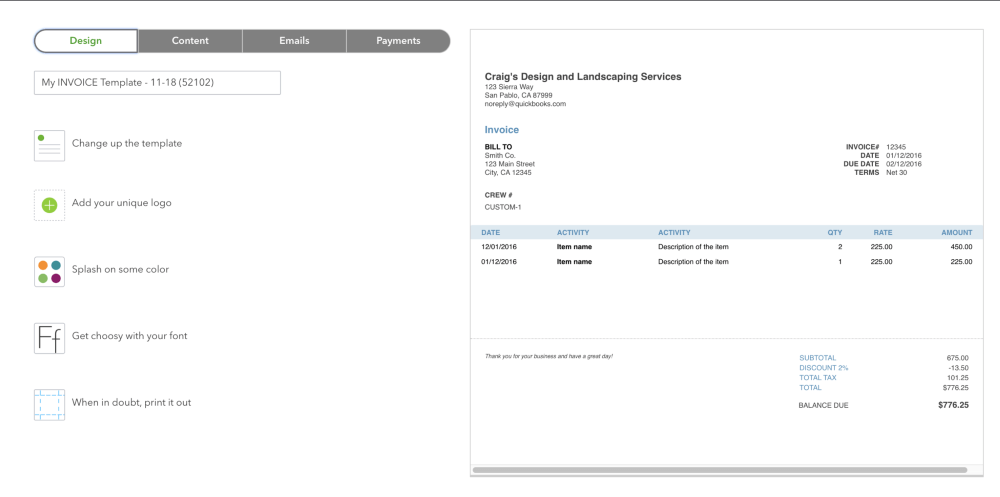
Image credit: Gentle Frog
How can I change the default invoice template QuickBooks Online has?
Let’s say you decide that you want to set a specific invoice template as your default in QuickBooks Online invoice templates.
Intuit explains how to change invoice template in QuickBooks Online:
- Create a new sales form.
- Select ⚙ Manage.
- Select the Design ▼ dropdown.
- Select Remove default from the Modernized template section. The default template will automatically be the standard template.
- Select Add/Edit to edit the standard template.
- Select Done. This new (Standard) template will now be your default.
Although QuickBooks currently allows you to modify which template is treated as the default, there are specific constraints worth noting.
Intuit also adds that, aside from the standard template, you can’t set other custom templates as a default template, nor can you edit the modernized template.
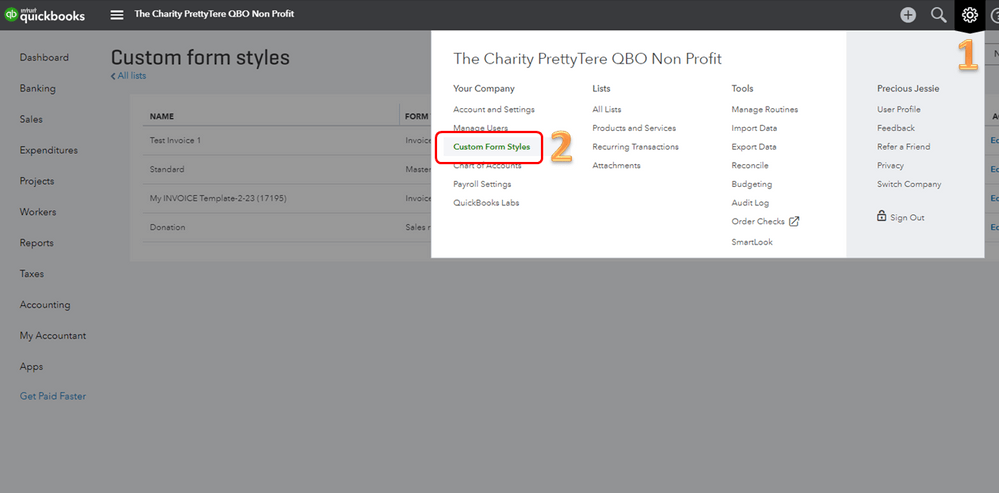
Image credit: QuickBooks
The best ways to personalize your QuickBooks invoice templates
You want to take advantage of the flexibility and customization options that these templates offer.
Below is a tutorial on how to customize your invoice template in QuickBooks Online.
Keep reading for some of the best ways to take customization to the next level with your QuickBooks Online invoice templates.
Apply your branding
Incorporating your branding into your QuickBooks Online invoice template ensures brand recognition and consistency. There are a few different ways you can do this.
First, you can easily add your company’s logo to your invoice template.
Additionally, your QBO invoice template allows you to choose a color scheme that matches your brand colors.
The font on your invoices should represent your brand for added cohesiveness. Make sure it’s also easy to read.
Browse the many options in QuickBooks Online templates to find one that aligns with your brand aesthetics.
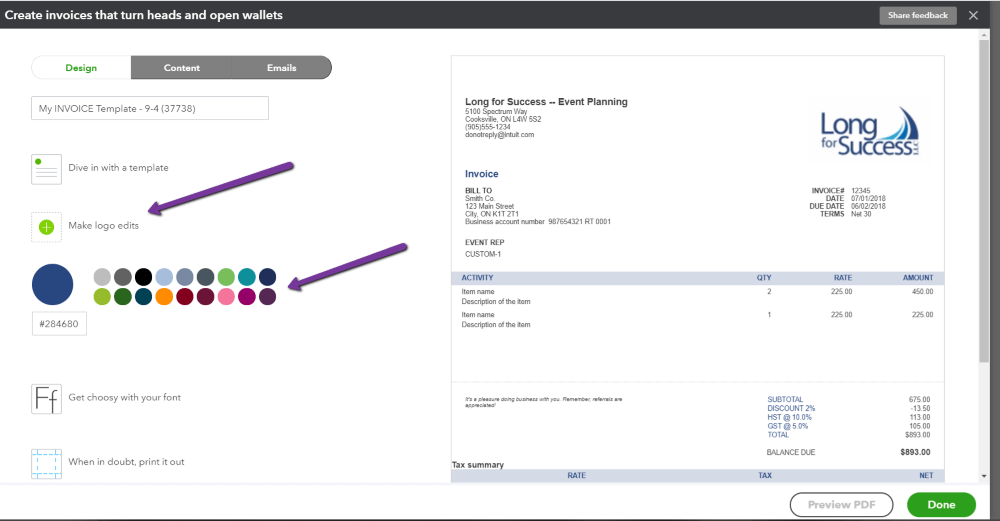
Image credit: My Cloud Bookkeeping
Add custom fields as needed
One of the strengths of QuickBooks Online invoice templates is the ability to include custom fields that capture details specific to your business.
You can use custom fields for information such as:
- Purchase order numbers
- Delivery dates
- Internal reference notes
To add custom fields in QuickBooks Online:
- Step 1: Go to Settings ⚙ → Custom fields
- Step 2: Select Add field
- Step 3: Enter a name and choose the data type
- Step 4: Select Transaction, then choose Invoice
- Step 5: Turn on Print on form
- Step 6: Save your changes
Once created, you can manage how these fields appear on your invoice by going to ⚙ Manage → Customization while working on a form.
By using these customization options, you ensure your QuickBooks Online invoice templates:
- Represent your brand
- Convey necessary information
- Meet your business’s unique requirements
These personal touches can go a long way in creating a professional impression and strengthening relationships with your clients.
How to create and send an invoice in QuickBooks Online
Creating and sending an invoice using QuickBooks Online is quite straightforward.
Ready to create an invoice? You can watch the quick video tutorial below or follow the step-by-step guide to get started:
- Step 1: Log in to QuickBooks and access your account to start creating new sales invoices.
- Step 2: Find and select the “+ New” button.
- Step 3: Select “Invoice” to open the invoice window and form.
- Step 4: Use the “Add customer” dropdown menu to find and select the customer who will receive the invoice. QuickBooks will fill in the details you have saved for them. If you need to add a new customer, select “Add New” from the drop-down menu.
- Step 5: Enter the transaction details:
- Products and services: What you provided to the customer, including descriptions, rates, and quantities. If you have not previously entered this product or service, you can select “Add New” to add it.
- Additional information: Any discounts, taxes, or additional charges
- Step 6: To customize the look of the blank invoice template, select ⚙ Manage to adjust fields, layout, and design settings.
You can also change what your customer sees here. For example, you might select certain fields (like shipping) while deselecting others (like total discount).
- Step 7: To complete the invoicing process, you can review your settings (including whether you accept online payments) and send the invoice by clicking “Review and send” to email it, or “Text” to send a unique link via SMS that the customer can use to access the invoice online. Note that text invoices are currently available only to customers with QuickBooks Payments.
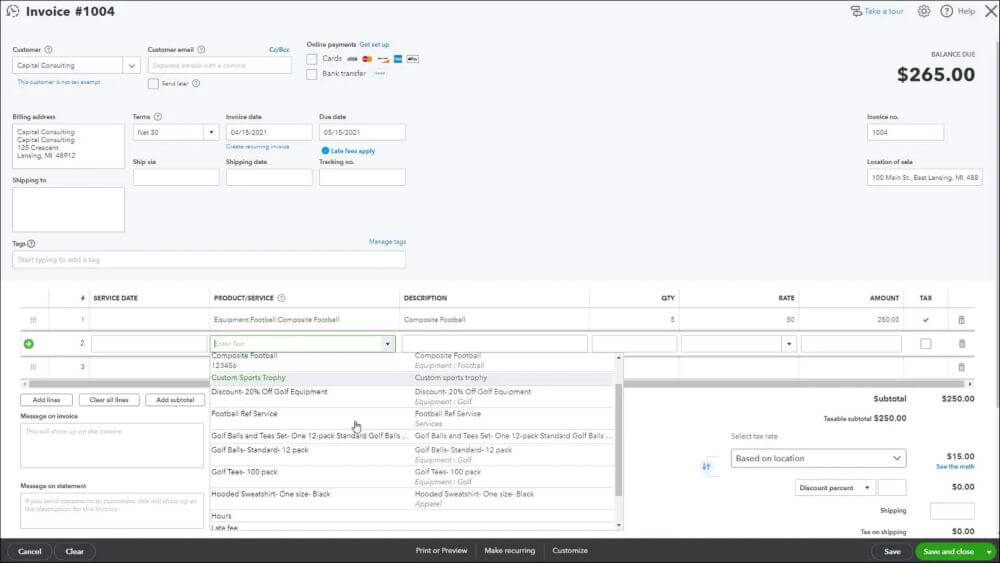
Image credit: Teach U Comp
How to import customized invoices into QuickBooks Online
If you want to use your own branded invoice design, QuickBooks Online allows you to import a custom template created in Microsoft Word. This lets you keep your formatting, layout, and branding consistent across every invoice.
Here’s how to do it:
Step 1: Prepare your Microsoft Word (.docx) template
Start by creating your invoice template in Microsoft Word and saving it as a .docx file.
Before you upload it, it’s important to understand that QuickBooks has strict formatting requirements.
Your template must:
- Be a single-page document (QuickBooks will extend it automatically for multi-page invoices)
- Be under 2 MB in size
- Use one of the supported fonts: Arial Unicode MS, Courier, Courier Bold, Courier-Oblique, Courier Bold-Oblique, Helvetica, Helvetica Bold, Helvetica Oblique, Helvetica Bold-Oblique, Times Roman, Times Bold, Times Italic, Times Bold-Italic Symbol, Zapf Dingbats
- Follow a simple structure (avoid nested tables, merged cells, or complex layouts)
To allow QuickBooks to insert invoice data correctly, you’ll also need to include placeholders using EZ Map fields. These are written in angle brackets, such as <invoice_date> or <customer_name>.
QuickBooks uses these fields to automatically match your template with its internal data. If the fields aren’t recognized, you may need to review or adjust the mapping during the import process.
Step 2: Upload your custom invoice template
In QuickBooks Online:
- Click the gear icon (Settings)
- Select Custom Form Styles
- Click New style, then choose Import style
- Select Invoice as the form type
- Upload your .docx file and click Next
This is where QuickBooks begins processing your template.
- Next, choose Import style
- Select the form type
- Upload the .docx file
- Review field mapping, preview, and save
Step 3: Review and match your fields
QuickBooks will scan your template and attempt to match your placeholders with its system fields.
If you used standard field names, most of this will happen automatically.
You should still review the preview to confirm:
- Dates appear in the correct locations
- Customer details are mapped properly
- Line items display as expected
If anything looks off, you can adjust the field mappings before continuing.
Step 4: Preview and save your template
Once everything looks right:
- Click Next to preview the full invoice
- Confirm the layout, spacing, and formatting
- Click Save and give your template a name
Your custom invoice template is now ready to use when creating invoices in QuickBooks Online.
With Method, invoices fit the way your business works. Create branded QuickBooks invoices, tailor the fields and layout to your process, and keep everything synced in real time without double entry or manual fixes.
Automate your QuickBooks Online invoices with Method
What if there were a way to simplify your invoice creation process? Method features make it the most powerful tool for QuickBooks Online users.
Not only does Method offer custom invoice templates that take your personalization to the next level, but it also links your invoices directly to your customer relationship management (CRM) system.
This facilitates personalized customer communications and enhanced customer relationship tracking.
What’s more, automated invoicing lets you send invoices based on set triggers, such as sales orders or service deliveries.
Let Method handle the jobs you can do but don’t want to.
With it, you:
- Save time on repetitive tasks
- Reduce human errors
- Collect online payments (via QuickBooks Payments or integrations)
As a result, you get faster payments while your customers get a better, personalized experience.
Effortless invoicing with Method and QuickBooks templates
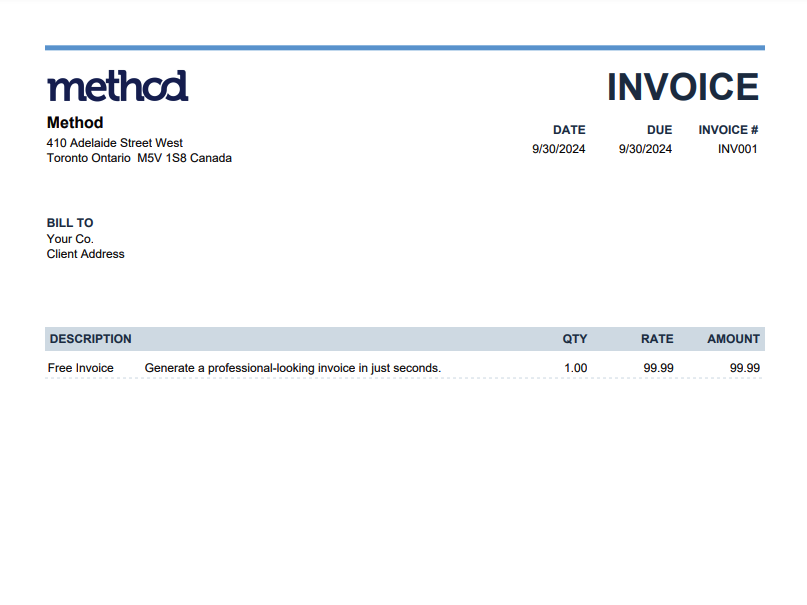
Need an easier way to create professional invoices? Method’s free invoice generator is here to help. With our free invoice tool, you can create a polished, branded PDF invoice in seconds.
Here are four reasons Method is a smart choice for QuickBooks users:
1. Easy to generate free invoices:
Forget about duplicating files, filling out Google Docs, and spending hours mapping out tables and fields. With the Method free invoice template generator, all you need to do is fill in a few fields, click a button, and download a PDF invoice that’s ready to send in minutes.
As a Method user, any invoices you create instantly sync to your QuickBooks for easy management.
2. Free customized and branded invoices:
Add key business elements like your business logo, contact information, and unique payment terms.
Tailor the QuickBooks invoice format to include essential details and create not only a professional look, but also establish constant branding across all your sales forms.
3. Avoid errors and save time:
Managing dozens of invoices is time-consuming, and that’s where Method’s tools make a huge difference. They keep everything organized. In turn, you can apply invoice payment terms and easily track overdue invoices.
4. Keep it QuickBooks compatible:
Method CRM syncs with QuickBooks Desktop and QuickBooks Online. You can leverage features like invoice preview, invoice screen customization, and more to create and manage invoices across platforms.
This integration lets you start with a sample invoice format and customize it to be as unique as your business.
QuickBooks Online invoice templates FAQs
How do I edit an invoice template in QuickBooks?
To edit an invoice template in QuickBooks Online, follow these steps:
- Step 1: Click on the Gear Icon in the upper right corner
- Step 2: Select “Custom Form Styles”
- Step 3: Find the template you want to adjust, then click “Edit”
- Step 4: Use the Design, Content, and Emails tabs to make changes to the layout, fields, and messaging.
- Step 5: Customize the appearance and information on your template
- Step 6: Click “Done” and save your changes
Do invoices need to be numbered?
Yes, you should number invoices. An invoice number provides a unique identifier for tracking and managing invoices. They’re also essential for accounting and tax purposes.
QuickBooks Online automatically assigns a unique number for your invoice templates in QuickBooks, but you can also customize them.
How do I issue an invoice?
To issue an invoice using QuickBooks Online, follow these steps:
- Step 1: Open QuickBooks Online and click the “+ New” button.
- Step 2: Select “Invoice”.
- Step 3: Fill in the details, including the customer’s name, the products or services provided, and the cost. You can also enable payments (card/ACH) before sending.
- Step 4: Choose one of your QuickBooks invoice templates.
- Step 5: Click “Save and send” to email the invoice to your customer.
Where are invoice templates stored in QuickBooks Online?
Select the Gear icon in the upper right-hand corner, then select “Custom Form Styles.” You’ll be able to see existing templates there, edit them, or add new ones.
Can I create multiple invoice templates in QuickBooks Online?
Yes, this is done through the “Custom Form Styles” section. Access it by clicking on the Gear icon in the upper right-hand corner, then add the new templates you’d like to use.
Why can’t I change my invoice template in QuickBooks Online?
If you can’t change your invoice template, it may be due to user permissions, browser issues, or limitations within the selected template. In some cases, you may be editing a standard template that has fewer customization options. Trying a different template or checking your access level usually resolves the issue.
Can I customize the design of my invoice template?
Yes, QuickBooks allows you to customize colors, fonts, layout, and which fields appear on your invoice. You can make these changes in the Design and Content tabs within Custom Form Styles.
How do I add a logo to my invoice template in QuickBooks Online?
QuickBooks lets you add up to 10 distinct logos, and presents the following steps for doing so:
- Go to Settings ⚙ and select Custom form styles.
- Select New style and choose the appropriate form type.Note: To add a logo to an existing template, locate the form in the list and select Edit under the Action column.
- Select the Design tab.
- Select Make logo edits.
- Select the Add a logo + box.
- Locate and select your image file.
- Select Open.
- Select Save, then Done to save your changes.
Note that although you can store multiple logos in your account, only one logo can be used on each invoice template at a time.
Can I edit invoice fields like payment terms or due dates?
Yes, you can edit these fields for each invoice you send, add new terms, or update your default invoice fields.
Do changes to an invoice template apply to existing invoices?
Yes, according to Intuit, any customization changes you make will apply to all existing and future invoices.
Can I switch invoice templates when creating an invoice?
Yes, you can switch invoice templates while creating an invoice. From the invoice screen, go to ⚙ Manage → Design ▼, then select a template under Other template.
Automate your way to stress-free days with your free trial of Method.